
How to Create a Meeting on Behalf of Someone in Outlook?
Sometimes, assistants, managers, or team members need to schedule meetings for someone else. Outlook allows you to create a meeting on behalf of another person, but you must first have the correct permissions. This feature is commonly used by executive assistants and administrative staff.
In this guide, you’ll learn how to schedule a meeting on behalf of someone in Outlook step by step.
Requirements Before You Start

Before creating a meeting for someone else, make sure:
- You have delegate access or calendar permissions
- The person has granted you permission
- You are using Outlook Desktop or Outlook Web with proper access
Without permission, Outlook will not allow you to send the meeting invite on their behalf.
How to Create a Meeting on Behalf of Someone (Outlook Desktop)
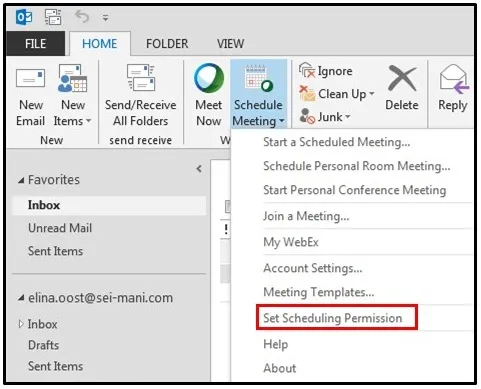
Follow these steps:
- Open Outlook
- Go to Calendar
- Click New Meeting
- Click Options
- Select From
- In the “From” field, enter the name of the person you are scheduling for
- Add meeting details (subject, date, time, location)
- Add attendees
- Click Send
The meeting invitation will show as:
Your Name on behalf of [Person’s Name]
How to Create a Meeting on Behalf of Someone (Outlook Web)
If you are using Outlook in a browser:
- Open Outlook Web
- Go to Calendar
- Click New Event
- Click More options
- Select the drop-down menu next to your name
- Choose the person you are scheduling for
- Add meeting details
- Click Send
The invitation will indicate that it was sent on behalf of the person.
Types of Permissions Required
To schedule meetings for someone else, you need one of the following:
- Delegate Access
- Editor permission on Calendar
- Send on Behalf permission
The account owner must grant these permissions in Outlook settings.
Common Problems and Solutions
Cannot See “From” Field
Enable it from the Options tab.
Permission Denied Error
Ask the person to grant you proper calendar access.
Meeting Not Showing Properly
Make sure you selected the correct account in the “From” field.
Tips for Scheduling on Behalf of Others
- Double-check the meeting time
- Confirm availability before sending
- Add clear subject lines
- Include meeting agenda
- Verify the correct calendar is selected
These steps help avoid confusion and scheduling mistakes.
Final Thoughts
Creating a meeting on behalf of someone in Outlook is simple once you have the right permissions. This feature is especially helpful for assistants and managers who manage executive calendars. By following the correct steps, you can schedule meetings smoothly and professionally.