How to Automatically Send Shipment Tracking Emails in WooCommerce?
Sending shipment tracking emails automatically in WooCommerce helps improve customer experience and reduces support requests. Customers want to know where their orders are, and automatic tracking emails keep them informed without manual work. By setting up automated tracking notifications, store owners can save time while providing professional service.
WooCommerce does not include automatic shipment tracking emails by default, but you can easily enable this feature using plugins or built-in email settings.
Why Automatic Tracking Emails Are Important
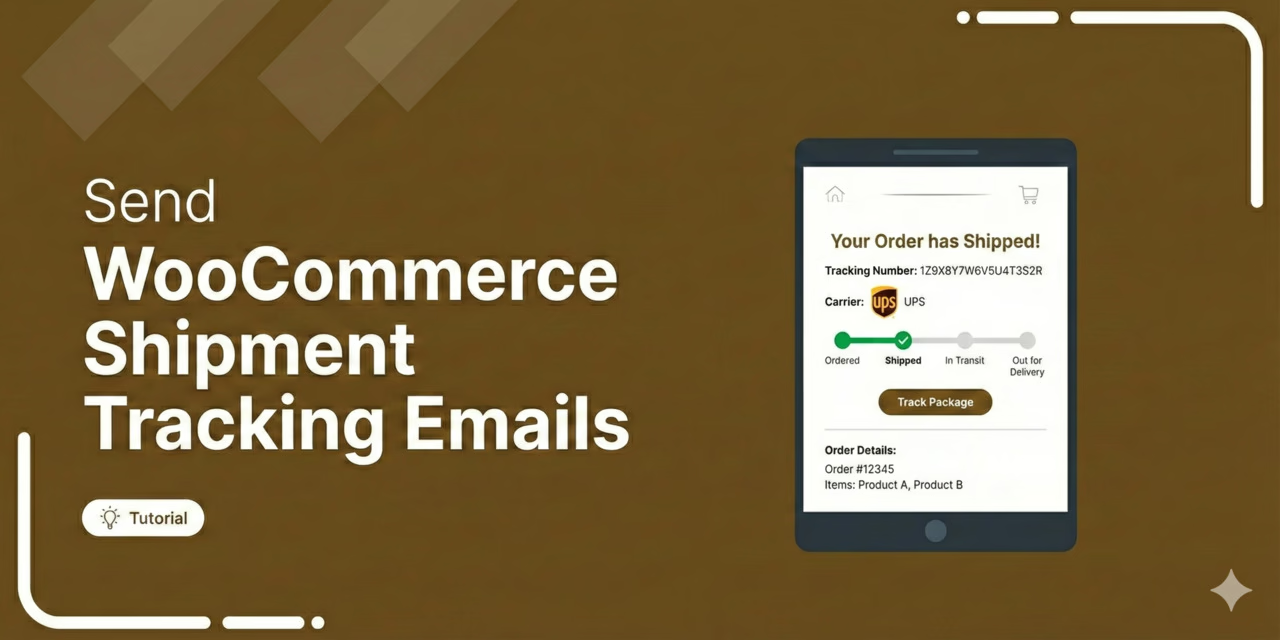
Automatically sending tracking information offers several benefits:
- Customers stay updated about their orders
- Fewer “Where is my order?” messages
- Improved customer trust
- Better shopping experience
- Saves time and effort
Automation makes your WooCommerce store more efficient and professional.
Method 1: Use a Shipment Tracking Plugin
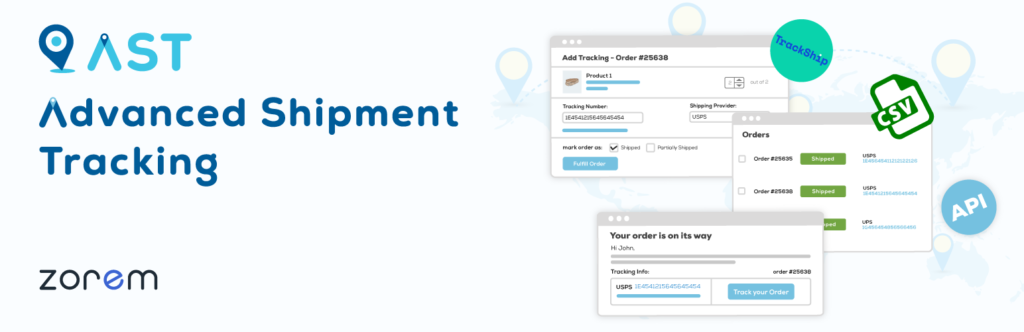
The easiest way to send automatic tracking emails is by installing a shipment tracking plugin.
Steps:
- Log in to your WordPress dashboard.
- Go to Plugins → Add New.
- Search for WooCommerce Shipment Tracking.
- Install and activate the plugin.
- Go to WooCommerce → Orders.
- Open an order.
- Add the tracking number and courier service.
- Save the order.
Once tracking information is added, the customer automatically receives an email with tracking details.
Method 2: Use Advanced Shipment Tracking Plugin
Another popular option is Advanced Shipment Tracking for WooCommerce.
Steps:
- Go to Plugins → Add New.
- Search for Advanced Shipment Tracking for WooCommerce.
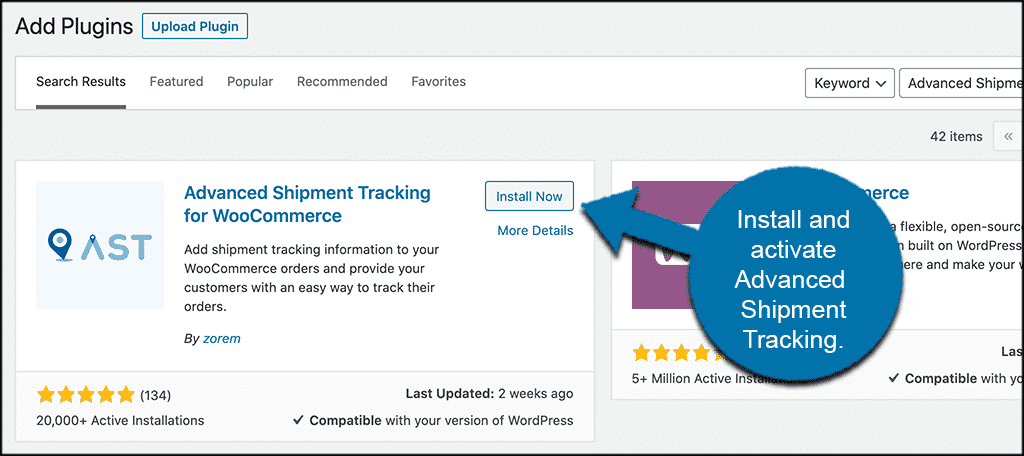
- Install and activate the plugin.
- Open WooCommerce → Orders.
- Add tracking details.
- Mark the order as shipped.
The system automatically sends tracking emails to customers.
What Tracking Emails Should Include
A good shipment tracking email should contain:
- Order number
- Tracking number
- Courier company
- Tracking link
- Estimated delivery date
This information helps customers track orders easily.
Tips for Better Tracking Emails
To improve your tracking emails:
- Use clear subject lines
- Include tracking links
- Add store branding
- Keep messages simple
- Send emails immediately after shipping
Professional emails increase customer satisfaction.
Common Problems and Fixes
Emails Not Sending
Check WooCommerce email settings and ensure emails are enabled.
Tracking Link Not Working
Verify the courier tracking URL.
Emails Going to Spam
Use a reliable SMTP email service.
Final Thoughts
Automatically sending shipment tracking emails in WooCommerce is an essential feature for any online store. With the help of shipment tracking plugins, you can notify customers instantly when their orders are shipped. This improves communication, reduces customer questions, and builds trust in your store.
Setting up automated tracking emails is simple and can make a big difference in customer satisfaction and store efficiency.