
Attaching an email in Outlook is a useful feature when you need to forward a conversation, share important information, or keep email records organized. Instead of copying and pasting text, Outlook allows you to attach an entire email message so the recipient can see the original formatting, attachments, and details.
This method is commonly used in business communication where accuracy and documentation are important.
Method 1: Attach an Email by Drag and Drop
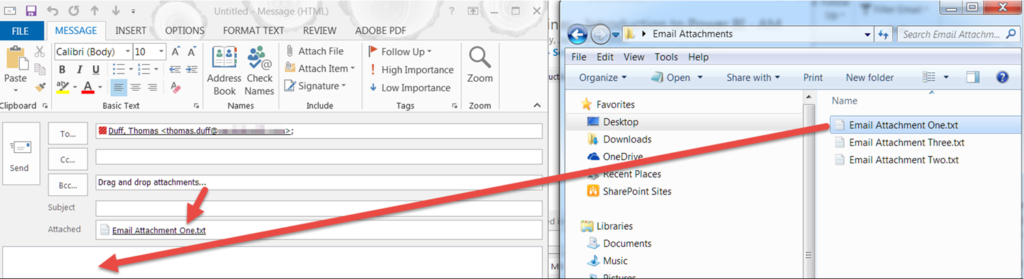
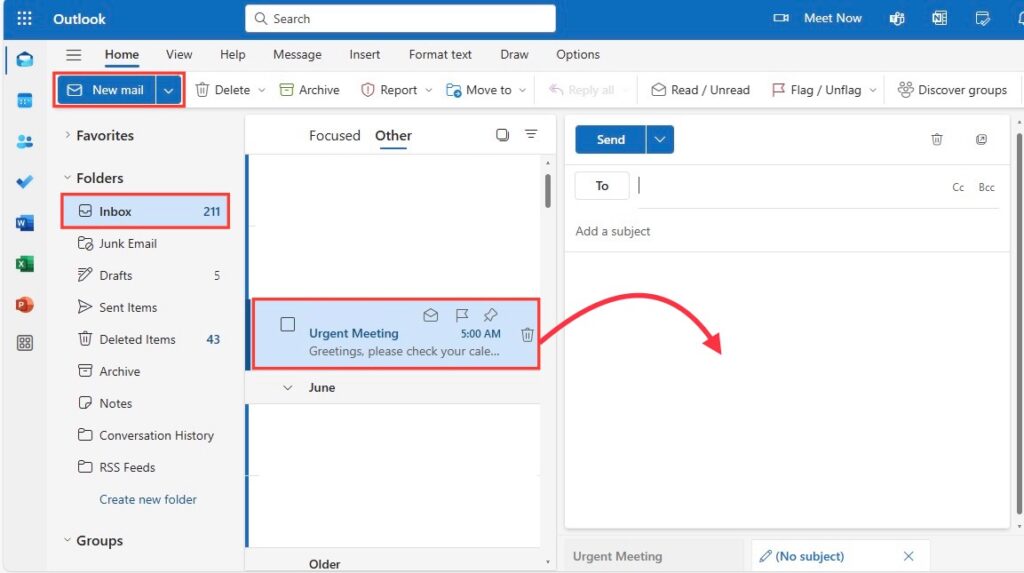
The easiest way to attach an email in Outlook is by dragging and dropping the message into a new email.
Steps:
- Open Outlook and click New Email.
- Locate the email you want to attach in your inbox.
- Click and hold the email.
- Drag it into the new email message window.
- Release the mouse to attach the email.
The email will appear as an attachment, usually with a .msg file format.
This method is quick and works well for most users.
Method 2: Attach an Email Using the Insert Option
You can also attach an email using Outlook’s built-in attachment tools.
Steps:
- Open Outlook and click New Email.
- Select the Insert tab.
- Click Attach Item.
- Choose Outlook Item.
- Select the email you want to attach.
- Click OK.
The selected email will be added as an attachment.
This method is useful when you need to search for a specific email.
Method 3: Forward an Email as an Attachment
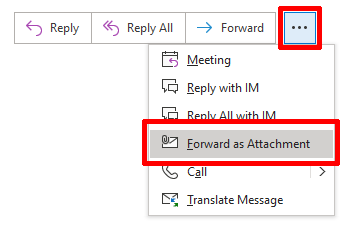
Outlook also allows you to forward emails as attachments automatically.
Steps:
- Select the email you want to attach.
- Click the More Options (three dots) or Forward menu.
- Choose Forward as Attachment.
- Enter the recipient’s email address.
- Click Send.
This option keeps the original email intact.
When You Should Attach an Email
Attaching emails is helpful in many situations:
- Sharing official communication
- Sending proof of conversation
- Reporting issues to support teams
- Keeping email records
- Business documentation
It ensures the recipient sees the complete original message.
Common Problems and Solutions
Attachment Not Showing
Make sure the email is attached as a file and not pasted as text.
File Too Large
Remove unnecessary attachments from the original email if the file size is too big.
Drag and Drop Not Working
Restart Outlook or use the Insert → Attach Item option instead.
Final Thoughts
Attaching an email in Outlook is a simple but powerful feature that helps you share complete conversations accurately. Whether you use drag-and-drop, the insert option, or forward-as-attachment, Outlook provides multiple ways to attach emails quickly and efficiently.
Knowing how to attach emails properly improves communication and helps maintain organized records.