
How to Stop Microsoft Teams from Opening on Startup
How to Stop Microsoft Teams from Opening on Startup (Windows & Mac)
Microsoft Teams has become a vital workplace collaboration software for teams across the United States, helping with remote team communication, meetings, and project coordination. Despite its usefulness, many users find it frustrating when Teams opens automatically every time their computer starts.
This constant auto-launch can slow down computer startup performance, increase RAM and CPU usage, and cause unnecessary background applications to run. Learning how to stop Teams from opening on startup gives you control over your system, reduces clutter, and improves efficiency. This guide explains practical methods to disable Microsoft Teams auto start on Windows 11 and macOS, ensuring the app runs only when you need it.
Why Microsoft Teams Opens Automatically on Startup
Microsoft Teams is designed to integrate tightly with your system. When installed, it automatically adds itself to startup lists to ensure users can access it quickly. These default settings often trigger Microsoft Teams auto start issue, leading to Teams opening automatically on startup every time you log in. Many users are unaware of this, which results in slower boot times and unnecessary background applications running from the beginning.
The auto-launch mechanism helps keep Teams ready for meetings and notifications. It ensures the app stays connected with your team and supports Teams project management and communication. Startup configuration occurs through the system, adding Teams to lists that load on login. Learning how to prevent Teams from launching automatically allows users to control their workflow without impacting team communication. It also helps in reducing system resource usage during boot.
Default installation settings: During installation, Teams enables auto-start by default to make it instantly available. This ensures that new users don’t miss notifications or meetings. However, these background applications can slow the system. By adjusting Microsoft Teams startup settings, users can disable auto-launch while keeping the app ready when needed.
Microsoft auto-launch feature: Teams runs a background service that checks login events. This feature guarantees Teams launches at startup, even if the user closes it the previous session. While useful for constant communication, it can be a major contributor to slow boot time and RAM and CPU usage. Understanding this mechanism is key to managing startup behavior effectively.
Startup app configuration:Operating systems manage programs through Windows startup apps and macOS login items. Teams adds itself to these lists automatically. Once it is in the startup list, it will open every time the computer boots unless you disable Teams login startup manually. Removing Teams from these configurations prevents unnecessary background applications and improves computer startup performance.
Why You Should Disable Microsoft Teams from Startup
Disabling Teams from startup improves system efficiency. Auto-start increases the load during boot, making computers slower and less responsive. Many users prefer opening Teams manually only when required, giving them better control over system resource usage and RAM and CPU usage.
Automatic Teams startup also increases background applications, which can consume bandwidth and slow down other important software. Disabling startup ensures your system runs efficiently while keeping Teams available when necessary. Controlling startup programs can significantly reduce slow boot time and improve overall computer startup performance, especially on older machines or devices with limited resources.
- Slower boot time: Each app added to startup extends the time it takes to reach the desktop. Teams, being a heavy application, can noticeably slow the boot process. Removing it from startup allows Windows or macOS to load faster and improves daily workflow efficiency.
- High RAM and CPU usage: Even when idle, Teams consumes memory and CPU cycles. Auto-start keeps services like chat updates and notifications running in the background. Disabling startup prevents stop Teams running in background, freeing resources for other applications or heavier workloads.
- Unnecessary background processes: Teams auto-start triggers multiple services to run immediately, including messaging sync, file updates, and notifications. For users who don’t need Teams all the time, these processes are redundant. By removing Teams from startup apps, manage startup applications Windows or Mac becomes simpler and more efficient.
Method 1: Disable Microsoft Teams Auto-Start from Teams Settings
The easiest way to prevent Teams from launching is through its own settings. Microsoft Teams settings provide a direct option to stop auto-start without affecting other system configurations.
Open Teams and click on your profile icon. Navigate to Settings, then the Application section. Uncheck Auto-start application. After this, Teams will no longer launch automatically, allowing you to manually open it whenever required. This method is quick and avoids unnecessary background applications.
- Step-by-step inside the Teams app:Teams allows precise control over startup behavior. Users can access Teams notifications settings to ensure alerts remain active even when the app does not auto-start. This combination ensures no important updates are missed while keeping the system optimized.
Method 2: Stop Microsoft Teams from Startup Using Task Manager (Windows)
Windows provides the Windows Task Manager startup tab for managing programs that launch during boot. This interface gives users full control over which apps run, including Teams.
Open Task Manager using Ctrl + Shift + Esc. Go to the Startup tab and find Microsoft Teams. Right-click and select Disable. This stops Teams from auto-launching while leaving other apps untouched. This method helps users control startup programs Windows and reduces RAM and CPU usage efficiently.
Managing startup apps in Task Manager: Task Manager allows real-time monitoring of startup impact. By reviewing startup programs, you can stop Teams launching on boot and identify other heavy applications affecting computer startup performance.
Method 3: Turn Off Microsoft Teams Startup via Windows Settings
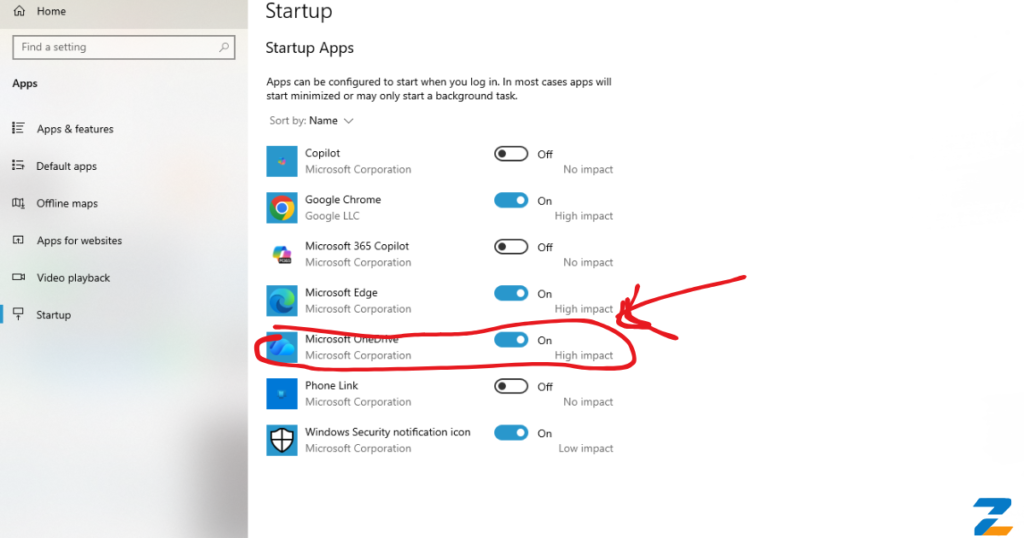
Windows also offers a built-in method to disable startup apps without opening Task Manager. The Windows settings apps startup menu allows users to toggle auto-start options for each program.
Press Windows + I to open Settings. Navigate to Apps > Startup. Locate Microsoft Teams and switch it Off. This method ensures Teams does not load automatically, improving slow boot time and reducing system resource usage.
Startup apps settings in Windows 10/11: Windows 10 and 11 provide visual indicators showing each app’s startup impact. Disabling Teams here ensures it does not affect RAM and CPU usage while keeping other essential apps running smoothly.
Method 4: Remove Microsoft Teams from Startup for All Users (Admin Method)
In workplaces, IT administrators often need to control startup programs across multiple devices. Using Registry Editor or Group Policy, administrators can disable Teams startup Mac or Windows for all users.
This method is essential for maintaining uniform project collaboration platform setups across an organization. It prevents unnecessary background applications and allows employees to launch Teams manually when required.
- Registry or Group Policy method: Admins can remove Teams from startup using Windows registry keys or Group Policy settings. Editing these configurations prevents auto-start for all accounts, solving the Microsoft Teams auto start issue in enterprise environments.
- Useful for IT administrators: Centralized control ensures that Teams does not interfere with computer startup performance on corporate devices. Admins can optimize boot speed, reduce slow boot time, and maintain consistent workflows across all systems.
Method 5: Stop Microsoft Teams from Opening on Startup on macOS
Mac users can manage startup behavior using macOS login items or system preferences. Teams, like Windows, defaults to auto-launch on login, affecting boot speed and performance.
Access Mac system preferences users and groups and select your account. Navigate to Login Items, locate Microsoft Teams, and remove it. This prevents auto-start while keeping Teams accessible for meetings and collaboration.
Login items method: Removing Teams from Mac startup applications stops it from consuming resources unnecessarily. Users maintain full access when needed while improving computer startup performance.
System settings method: You can also adjust settings from the Dock. Right-click the Teams icon, select Options, then uncheck Open at Login. This change ensures Teams open at login Mac is disabled, reducing background load and unnecessary RAM and CPU usage.
Troubleshooting: What to Do If Teams Still Opens Automatically
Occasionally, Teams may continue launching despite disabled settings. Common causes include cached configurations, background services, or outdated versions.
Clearing Teams cache can resolve persistent issues. Navigate to the app’s local cache folder and delete stored files. Additionally, check running background services that might trigger auto-launch. If problems persist, reinstall Teams. This process resolves Teams update issues and ensures the application respects the disabled auto-start settings.
- Clearing cache: Teams stores old preferences that may override your changes. Teams cache clearing ensures your updated settings take effect and prevents the app from restarting automatically.
- Checking background services: Some third-party applications may re-enable auto-start. Reviewing active processes can identify conflicts that interfere with stop Microsoft Teams from opening on startup.
- Reinstalling Teams: Uninstalling and reinstalling is a final solution. This ensures Teams collaboration tool configurations are reset and allows proper management of Teams notifications settings.
Tips to Improve System Performance After Disabling Startup Apps
Disabling Teams improves boot times, but additional steps can enhance computer startup performance further. Review all startup apps and remove unnecessary programs. Regular maintenance, updates, and disk cleanup optimize boot speed and reduce slow boot time.
Managing other startup apps: Check Windows startup apps or Mac startup applications for programs consuming heavy resources. Disabling redundant apps helps maintain smooth workflow and frees up RAM and CPU usage for essential tasks like Teams project management.
Optimizing boot performance: Keeping software up to date, clearing cache, and monitoring background applications ensures faster startups. Efficient management of startup programs improves productivity, allowing Teams to run when needed without slowing your system.
Final Thoughts: Take Control of Your Startup Programs
Learning how to stop Teams auto launch gives users better control over their computers. Whether on Windows or Mac, disabling Teams from startup reduces unnecessary background applications, improves slow boot time, and frees system resources. Proper configuration ensures Teams remains a powerful project collaboration platform while keeping your system efficient and responsive.
Controlling startup apps is a small adjustment that has a big impact on daily productivity. Following these methods allows users to focus on work without being slowed down by unnecessary auto-start programs, making both personal and workplace devices faster and more reliable.
Click Here For More Information At: ZAVIFY LTD
FAQs
How do I stop Microsoft Teams from automatically opening?
Open Teams, go to Settings > General, and uncheck Auto-start application. On Windows, also disable it in Task Manager > Startup, or on Mac, remove it from Login Items.
How do I stop Microsoft from opening on startup?
Use your system settings: on Windows, go to Settings > Apps > Startup and toggle off Microsoft apps. On Mac, open System Preferences > Users & Groups > Login Items and remove the app.
How to stop Teams popping up on screen?
Disable auto-start in Teams settings, close background processes via Task Manager, and adjust Teams notifications settings to reduce pop-ups.
Does MS Teams need to run at startup?
No, Teams doesn’t need to run automatically. You can open it manually without affecting remote team communication or meeting notifications.