
How to Stop Spotify From Opening on Startup
How to Stop Spotify From Opening on Startup (Windows, Mac & Mobile)
Many users find it frustrating when Spotify opens automatically during login, slowing down their Windows 11 boot time and affecting system responsiveness. This happens because Spotify enables auto-start programs by default, running in the background even if you don’t use it daily. Unnecessary background processes like this consume valuable system resources, leading to lag, delayed startup, and slower overall performance.
Learning how to stop Spotify from opening on startup not only improves boot time improvement but also gives you full control over your installed applications. By following simple steps, you can prevent unwanted auto-launch, optimize PC resource management, and enjoy a faster, smoother computing experience.
Why Does Spotify Launch Automatically at Startup?
Spotify is designed to start automatically for user convenience. It remembers your playlist, preferences, and recent activity. This ensures music is ready instantly, but it also adds startup impact on your system. Each auto-start program consumes system resources, and combined with other apps, it can noticeably slow your Windows 11 boot time.
Most apps like Spotify or Adobe Creative Cloud enable auto-start by default during installation. While helpful in some cases, unnecessary startup applications often lead to reduced system responsiveness. Task Manager startup shows which apps have the highest CPU usage and background processes, helping users prioritize which programs to toggle off. Controlling startup apps improves boot time improvement significantly.
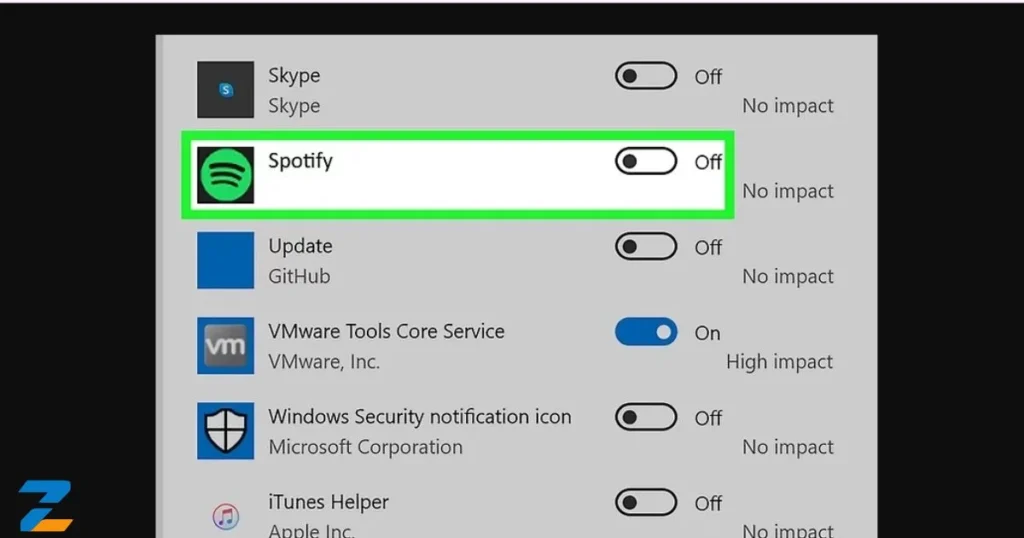
Method 1: Change Startup Settings Within the Spotify App (Universal Fix)
You can prevent Spotify from opening automatically by changing its internal preferences. Open the Spotify app, go to App settings, and locate the Startup and playback section. Toggle off “Open Spotify automatically after login”. This ensures the app will only launch when you choose a manual app launch, giving you full control over Spotify auto-launch.
This method works on Windows, Mac, and even some mobile devices. It’s the easiest way to control startup behavior without affecting other installed applications. Regularly checking these preferences is recommended, as software updates may reset auto-start settings.
How to Stop Spotify From Starting on Windows 11 & 10
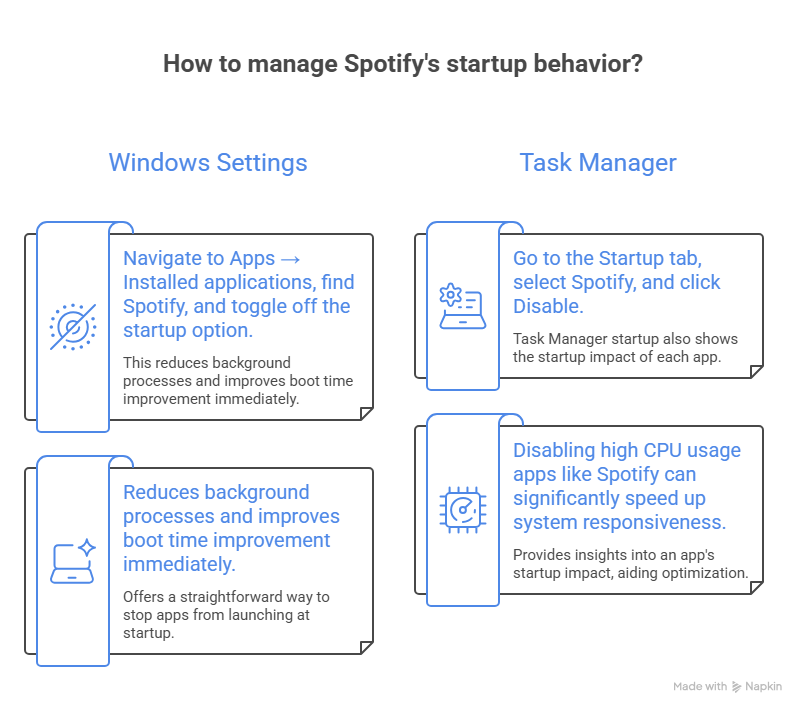
Windows 11 allows you to disable startup apps through the Windows Settings app. Press Windows + I, navigate to Apps → Installed applications, find Spotify, and toggle off the startup option. This reduces background processes and improves boot time improvement immediately.
Another way is to use Task Manager startup. Press Ctrl + Shift + Esc, go to the Startup tab, select Spotify, and click Disable. Task Manager startup also shows the startup impact of each app. Disabling high CPU usage apps like Spotify can significantly speed up system responsiveness.
| Method | Platform | Difficulty | Notes |
| Spotify App Settings | Windows/Mac | Easy | Universal fix; check after software updates |
| Windows Settings App | Windows 10/11 | Easy | Quick toggle; controls auto-start programs |
| Task Manager Startup | Windows | Medium | Shows startup impact; precise control |
Prevent Spotify From Opening at Launch on Mac (macOS)
On a Mac, Spotify auto-launch can be controlled through login items. Open System Preferences → Users & Groups → Login Items, and remove Spotify. This stops the app from starting automatically while keeping your playlists intact. You can also adjust Spotify preferences inside the app for extra control.
Disabling auto-start programs on macOS improves system performance optimization and reduces unnecessary CPU usage. Like Windows, macOS users benefit from manual app launch for faster boot time improvement and smoother operation, especially when many apps compete for system resources at startup.
How to Disable Spotify Auto-Launch on Android & iOS
On Android, go to Settings → Apps → Spotify → Battery & Background and disable autostart. This prevents Spotify auto-launch when the phone boots. iOS users can disable background app refresh and toggle off automatic music playback in Spotify preferences. Both methods save battery and reduce unnecessary background processes.
Mobile devices often struggle with high CPU usage apps running in the background. Controlling startup applications like Spotify ensures faster system responsiveness and smoother device operation. Frequent listeners can still access playlists via manual app launch whenever needed.
Advanced Fix: Using Registry Editor for Persistent Cases (Windows)
If Spotify keeps opening after trying normal methods, the Registry Editor Windows provides a definitive solution. Press Windows + R, type regedit, and navigate to HKEY_CURRENT_USER\Software\Microsoft\Windows\CurrentVersion\Run. Find the Spotify entry and delete it. This removes persistent auto-start programs even after software updates.
Editing the Registry Editor requires caution. Always back up first. Removing Spotify from startup applications list ensures faster boot time improvement and reduces CPU usage at login. Users gain full control over installed applications without affecting preferences or playlists.
Why You Should Disable Startup Apps Like Spotify?
Disabling startup apps like Spotify improves system performance optimization. Each auto-start program adds to background processes, increasing CPU usage and slowing Windows 11 boot time. Controlling startup applications reduces clutter and ensures your system runs efficiently.
Multiple high CPU usage apps at login cause slow computer recovery. Regularly reviewing Task Manager startup and App settings Windows 11 allows users to toggle off unnecessary apps. This simple action enhances system responsiveness, lowers boot time, and keeps system resources focused on tasks that matter.
Troubleshooting: What to Do If Spotify Still Opens Automatically?
Sometimes Spotify re-enables auto-start programs after software updates. Users should recheck App settings, Task Manager startup, and, if needed, Registry Editor Windows. Reboot after adjustments to confirm changes. Uninstalling and reinstalling Spotify is another option if it still launches automatically.
Ensuring proper control over Spotify auto-launch prevents unwanted background processes. Checking the startup applications list regularly ensures no high CPU usage apps drain your system resources, keeping your Windows 11 boot time short and system performance optimal.
Comparison Table: Methods to Disable Spotify Startup
| Method | Platform | Difficulty | Notes |
| Spotify App Settings | Windows/Mac/Mobile | Easy | Universal fix; must check after software updates |
| Windows Settings App | Windows 10/11 | Easy | Quick toggle; affects auto-start programs |
| Task Manager Startup | Windows | Medium | Shows startup impact; allows precise CPU usage control |
| macOS Login Items | Mac | Easy | System-level control; permanent solution |
| Registry Editor | Windows | Advanced | For stubborn cases; backup first |
| Mobile Settings | Android/iOS | Easy | Saves battery and system resources; prevents background processes |
Conclusion & Checklist for a Faster PC
Stopping Spotify from opening on startup improves Windows 11 boot time and reduces high CPU usage apps at login. Start with the Spotify preferences, then adjust App settings Windows 11, use Task Manager startup, and, if needed, the Registry Editor Windows. Confirm with a reboot and enjoy better system performance optimization.
Checklist for readers: Open Spotify preferences → disable auto-start, use Windows Settings app or Task Manager startup → check Registry Editor Windows if persistent → reboot → enjoy faster boot time improvement and smoother system responsiveness.
Click Here For More Information: https://zavify.co.uk