
How to Put Password on Shopify Store?
Launching an online store is exciting, but not every Shopify store is ready for the public right away. Sometimes you need extra time to finish your design, upload products, test payments, or prepare for a big launch. In these situations, one of the smartest things you can do is protect your site with a password.
If you are asking how to put password on Shopify store, the process is simple, but the benefits are important. A password-protected store gives you control over who can view your website before it is ready. It also helps you create a cleaner, more professional first impression when your store officially goes live.
In this guide, you will learn how to add a password to your Shopify store, why you might want to use one, when to remove it, and a few best practices to make the experience better for your visitors.
Why Put a Password on Your Shopify Store?
Before learning the steps, it helps to understand why password protection matters.
A Shopify password page prevents the general public from browsing your store. Only visitors with the password can enter. This is useful in several situations, such as:
- You are still building your store
- Your product pages are not ready yet
- You want to test your theme before launch
- You are making major changes to the website
- You want to create a private pre-launch experience
- You are preparing for a special product drop or brand launch
Instead of letting customers see an unfinished website, a password gives you time to work behind the scenes. It helps you stay organized and protects your brand image.
How to Put Password on Shopify Store
Shopify makes it easy to restrict access to your store. You can enable password protection directly from your admin dashboard.
Here is how to do it:
Step 1: Log in to Your Shopify Admin
Go to your Shopify admin panel and sign in to your account.
Step 2: Open Online Store Preferences
From the left-hand menu, click on Online Store, then select Preferences.
Step 3: Find the Password Protection Section
Scroll until you see the section related to Password protection.
Step 4: Enable Password Protection
Check the option that says your store access is restricted by password.
Step 5: Enter Your Password
Create a password that visitors will need to enter in order to access your store.
Step 6: Add a Message for Visitors
You can also write a message that appears on the password page. This is a great place to explain that your store is coming soon, launching soon, or currently under maintenance.
Step 7: Save Your Changes
Click Save to activate password protection.
Once this is done, your Shopify store will display a password page instead of your homepage for anyone who does not have access.
What Visitors See on a Shopify Password Page
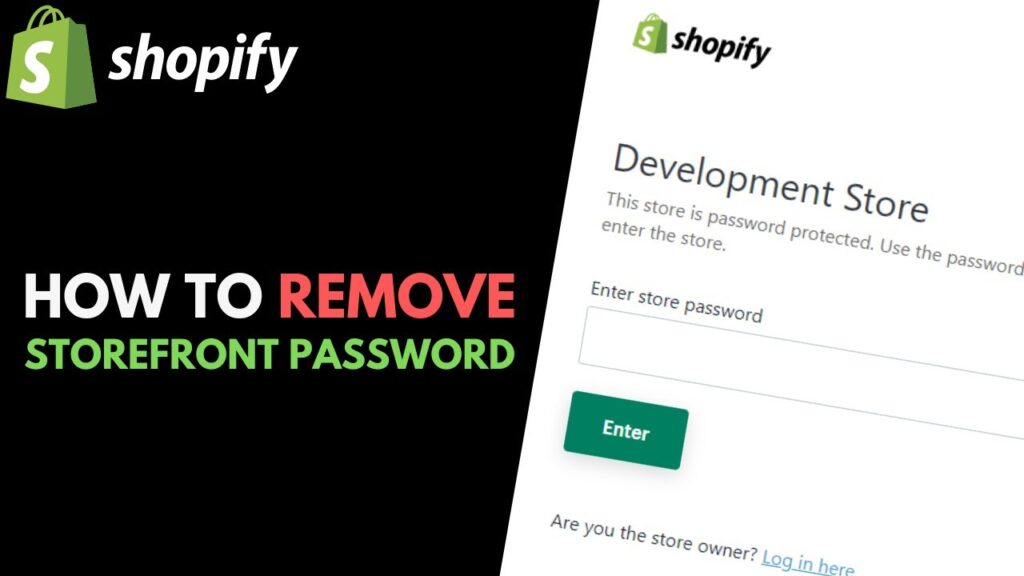
When password protection is enabled, visitors will not enter your main storefront directly. Instead, they will land on a password page that asks them to enter the password.
This page usually includes:
- Your store name
- A password entry field
- Your custom message
- A login option for staff or store admins
This page acts as a temporary front door for your business. That is why it is worth making it look polished and professional, even if it is only temporary.
How to Customize Your Shopify Password Page
A plain password page works, but a well-designed one works better. It can build curiosity, collect attention, and keep your brand looking strong even before launch.
You can customize your password page by:
- Adding a welcome message
- Explaining when your store will launch
- Using branded colors and logo
- Creating excitement around your products
- Including an email signup form if your theme allows it
For example, instead of a generic message, you could say:
We are getting ready for something exciting. Our store is launching soon. Stay tuned.
This sounds much more engaging and helps create anticipation. If visitors feel that something special is coming, they are more likely to return.
When Should You Use Password Protection?
Password protection is especially useful during specific stages of your store journey.
Before Launch
This is the most common reason. You may still be:
- Uploading products
- Writing descriptions
- Designing your homepage
- Testing mobile responsiveness
- Setting up shipping and taxes
A password gives you the privacy to complete everything properly.
During Store Redesigns
If you are making major theme or content changes, you may want to temporarily protect the store to avoid exposing unfinished work.
For Private Access or Exclusive Launches
Some store owners use password protection for limited-access shopping, VIP product previews, or members-only events. This can create exclusivity and build excitement around new collections.
During Maintenance
If your store needs temporary updates or fixes, a password can keep the customer experience clean while you work.
How to Remove the Password From Your Shopify Store
Once your store is ready for the public, removing the password is just as easy.
To remove it:
- Go to Shopify Admin
- Click Online Store
- Select Preferences
- Scroll to the Password protection section
- Uncheck the password option
- Save your changes
After this, your store will become visible to all visitors.
It is a good idea to check your homepage, navigation, product pages, and checkout settings before you remove the password. This helps make sure customers have a smooth experience from the moment your store goes live.
Best Practices for Using a Shopify Store Password
If you plan to protect your store, there are a few simple ways to do it well.
1. Use a Clear Visitor Message
Let visitors know why the store is locked. A short, friendly message creates a better experience than silence.
2. Keep the Password Simple if Sharing Publicly
If you are giving access to selected people, choose a password that is easy to type and share.
3. Test the Password Page Yourself
Open your store in an incognito or private browser window to see exactly what visitors will experience.
4. Do Not Leave the Password On Too Long
Some store owners forget to remove the password after launch. Always double-check before announcing your store publicly or running ads.
5. Match the Page to Your Brand
Even though it is temporary, your password page should still look like part of your business.
Common Mistakes to Avoid
While password protection is simple, a few mistakes can create confusion.
Avoid these common problems:
- Forgetting to save the settings after enabling the password
- Sharing the wrong password with customers or team members
- Leaving the store locked during launch day
- Using a blank or unprofessional message
- Not reviewing the password page on mobile devices
Small details matter, especially when customers are waiting to see your brand for the first time.
Is Password Protection Good for SEO?
If your Shopify store is password-protected, search engines usually cannot fully access your storefront content. That means your product pages and collections are not likely to rank in search results while the password is active.
This is not a problem if your store is still under construction, but it does mean you should remove the password when you are ready to start growing organic traffic.
If SEO is important to your launch strategy, make sure your store is fully open before investing heavily in content marketing, Google indexing, or paid promotion.
Final Thoughts: How to Put Password on Shopify Store
If you want to know how to put password on Shopify store, the process is simple: go to your Shopify preferences, enable password protection, set a password, add a message, and save your changes.
But beyond the technical steps, password protection is really about timing and presentation. It gives you space to prepare your store properly, protect your brand image, and control when customers see your business for the first time.
Whether you are building a new store, planning a launch, or updating your design, using a password can be a smart move. It helps you stay in control and ensures that when people finally arrive at your store, they see it at its best.




This is a really helpful breakdown of how to secure a Shopify store with a password, especially during those crucial pre-launch phases. I particularly appreciate the clarity on when and why to use password protection—like during redesigns or exclusive launches. It’s a simple but smart move that can make a big difference in maintaining control and professionalism.