
Saving an email as a PDF is a simple way to keep important messages safe and easy to share. A PDF file preserves the original formatting of the email and can be opened on almost any device. Many people save emails as PDFs for business records, invoices, receipts, or important conversations.
Most email services such as Outlook, Gmail, and other platforms allow you to save emails as PDFs using the print function. This method is quick and does not require any special software.
Method 1: Save an Email as a PDF in Gmail
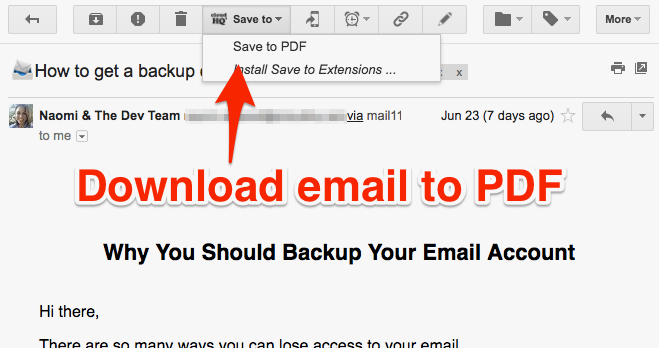
If you use Gmail, you can easily convert an email into a PDF file.
Steps:
- Open the email you want to save.
- Click the Print icon in the top-right corner.
- In the printer options, select Save as PDF.
- Click Save.
- Choose the folder where you want to store the file.
Your email will now be saved as a PDF document. If you need to add notes, comments, or additional information after saving the email, you can directly add text to the PDF instead of creating a new document or editing the original email.
Method 2: Save an Email as a PDF in Outlook
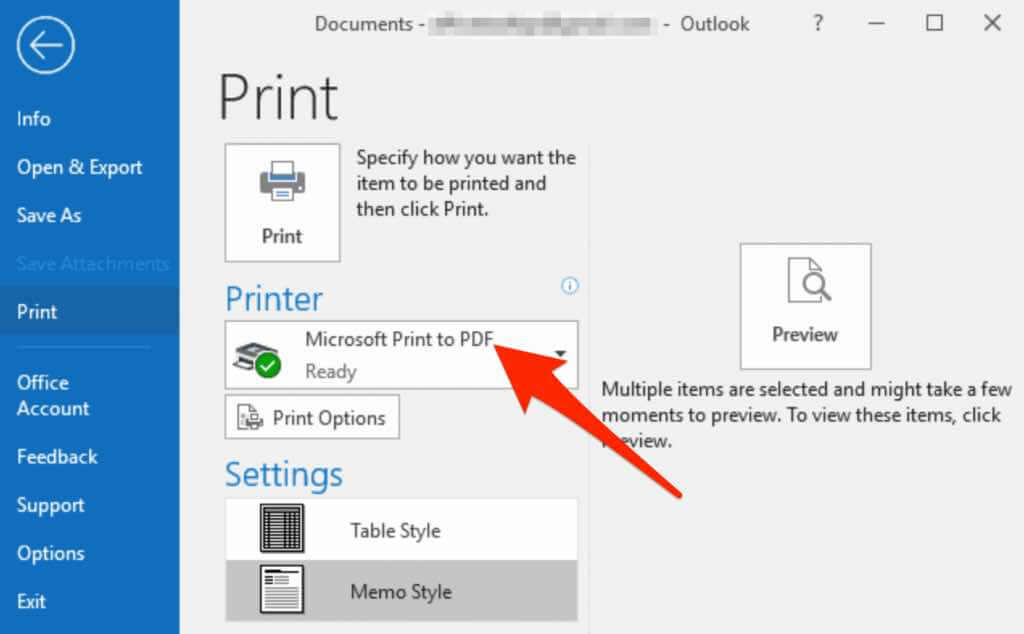
Outlook users can also save emails as PDF files using the print option.
Steps:
- Open the email in Outlook.
- Click File.
- Select Print.
- Choose Microsoft Print to PDF as the printer.
- Click Print.
- Select a location and save the file.
This creates a PDF copy of the email.
Method 3: Save an Email as a PDF on a Web Browser
Most web-based email services support saving emails as PDFs directly through the browser.
Steps:
- Open the email message.
- Press Ctrl + P (Windows) or Cmd + P (Mac).
- Select Save as PDF.
- Click Save.
- Choose a storage location.
This method works in most browsers like Chrome and Edge.
Benefits of Saving Emails as PDF
Saving emails as PDFs has several advantages:
- Keeps original formatting intact
- Easy to share with others
- Works on all devices
- Useful for record keeping
- Protects important information
PDF files are widely accepted and reliable for documentation.
When You Should Save Emails as PDF
You may want to save emails as PDF when:
- Keeping business records
- Saving invoices or receipts
- Storing legal communications
- Archiving important messages
- Sharing official conversations
This ensures important emails remain accessible.
Common Problems and Solutions
Formatting Looks Incorrect
Use the print preview option before saving.
Images Not Showing
Make sure images are fully loaded before saving.
File Too Large
Remove unnecessary content or attachments before saving.
Final Thoughts
Saving an email as a PDF is a quick and practical way to store and share important messages. Whether you use Gmail, Outlook, or another email service, the print-to-PDF method makes the process simple and reliable. Learning this basic skill helps you keep important emails organized and secure.