
Power Automate flows help automate tasks and save time, but sometimes flows can fail due to errors such as connection problems, incorrect settings, or missing data. When this happens, it is important to know immediately so you can fix the issue. One of the best ways to stay informed is to set up email notifications when a Power Automate flow fails.
Getting email alerts ensures that you can quickly identify problems and prevent disruptions in your automated processes.
Why Email Notifications for Flow Failures Are Important
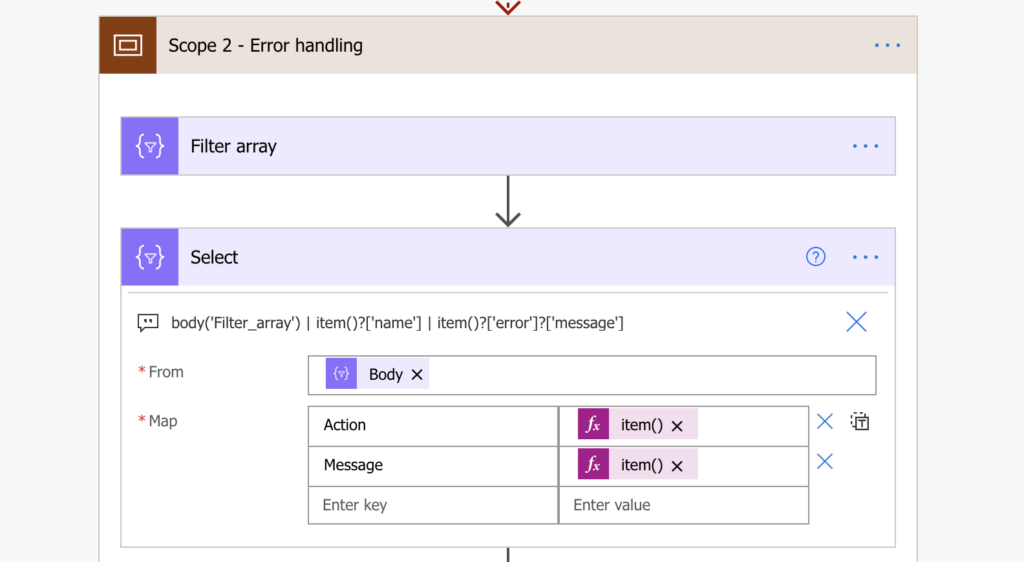
When a flow fails without notification, important tasks may stop working without anyone noticing. Email alerts help you stay updated and respond quickly.
Benefits include:
- Immediate notification of errors
- Faster troubleshooting
- Reduced downtime
- Better workflow reliability
- Improved business productivity
Email notifications make Power Automate more reliable and easier to manage.
Method 1: Enable Built-In Failure Notifications
Power Automate provides built-in notification settings that automatically send emails when a flow fails.
Steps:
- Open Power Automate.
- Go to My Flows.
- Select the flow you want to monitor.
- Click the three dots (More options).
- Select Settings.
- Find the Notifications section.
- Enable Email notifications for failed runs.
- Save your settings.
Once enabled, you will receive an email whenever the flow fails.
This is the easiest method for beginners.
Method 2: Create a Custom Failure Alert Flow
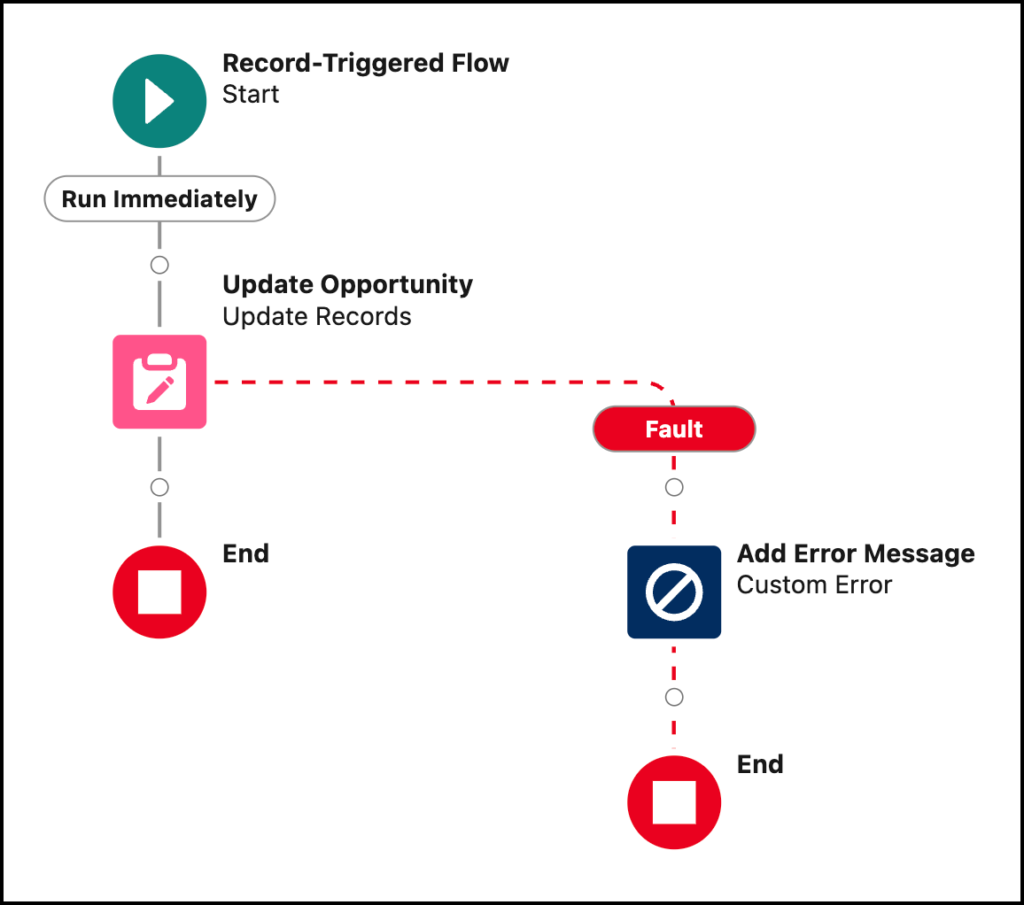
You can also create a custom flow that sends an email alert when another flow fails.
Steps:
- Open Power Automate.
- Click Create.
- Choose Automated Cloud Flow.
- Select a trigger like When a flow run fails.
- Add an action Send an Email.
- Enter your email address.
- Customize the subject and message.
- Save the flow.
This method allows more control over notification details.
What to Include in Failure Emails
A good failure notification email should include:
- Flow name
- Error message
- Date and time
- Run ID
- Link to the flow run
This information helps you diagnose problems faster.
Common Reasons Power Automate Flows Fail
Understanding common causes can help you fix issues quickly:
- Expired connections
- Incorrect permissions
- Missing data fields
- API errors
- Service outages
Monitoring failure emails helps detect these problems early.
Tips to Reduce Flow Failures
You can improve reliability by:
- Testing flows regularly
- Updating connections
- Adding error handling steps
- Monitoring flow history
- Using proper conditions
Preventing failures saves time and effort.
Final Thoughts
Setting up email notifications for Power Automate flow failures is essential for maintaining reliable automation. Whether you use built-in notifications or custom email alerts, staying informed allows you to fix problems quickly and keep workflows running smoothly.
With proper monitoring, Power Automate becomes a dependable tool for automating business tasks.