How to Turn Off Fast Startup Windows 11
How to Turn Off Fast Startup Windows 11: Complete Guide to Disable Fast Startup
If your computer feels slow when starting, learning how to turn off Fast Startup Windows 11 can make a big difference. The Fast Startup feature is designed to reduce Windows 11 boot time by using a hybrid shutdown and saving the Windows 11 system state in a hibernation file.
While it can help your PC start faster, it sometimes causes Fast Startup problems, such as preventing access to BIOS/UEFI settings, interfering with dual-boot setups, or creating hardware conflicts. Disabling it allows your system to perform a Windows 11 complete shutdown, resolve hardware or software issues, and ensure smoother startup performance every time you power on your computer.
1. What is Fast Startup?
Fast Startup in Windows 11 is a feature that allows your computer to boot faster by saving the Windows 11 system state to a hibernation file. Instead of performing a full shutdown, the system partially hibernates the kernel session and loads it quickly during the next startup. This technique is called a hybrid shutdown, and it is designed to reduce the time it takes to boot faster Windows 11 systems.
While this can improve startup speed, the Fast Startup feature can cause issues with certain hardware, external devices, or dual-boot configurations. It may also block some BIOS or UEFI settings, which prevents users from performing advanced troubleshooting Windows. Understanding how this feature works is key to deciding whether to disable Fast Startup for your PC.
2. How Fast Startup Works
The Fast Startup feature works by saving a snapshot of the Windows 11 system state into a hibernation file when you shut down your PC. When you power it back on, Windows loads the saved kernel session and drivers instead of initializing them from scratch. This is similar to pausing a movie instead of closing it and starting over, allowing boot faster Windows 11 performance.
This method can be highly efficient, but it can create Fast Startup problems such as preventing access to certain BIOS/UEFI settings or causing conflicts with devices. Users who rely on dual-boot Windows 11 and Linux or perform frequent system maintenance may find this feature limiting. In such cases, learning how to turn off Fast Startup ensures a true Windows 11 complete shutdown.
3. Benefits of Fast Startup
Fast Startup offers faster boot times and convenience for most Windows 11 users. It uses Windows 11 power settings and the hybrid shutdown process to save the system state and minimize waiting during startup. Users notice reduced delays when opening their PC, especially for laptops or devices with SSDs, which can improve PC startup performance significantly.
Additionally, Fast Startup can save energy since it avoids initializing certain system processes each time you boot. It works well with Windows 11 Power Options and helps maintain power management Windows efficiency. For casual users, it is a practical tool for quickly accessing work and applications without waiting for a full boot.
4. Problems and Drawbacks of Fast Startup
Despite its advantages, the Fast Startup feature can lead to Fast Startup problems. It may interfere with dual-boot Windows 11 and Linux setups or prevent BIOS/UEFI access for certain systems. Some external devices and drivers may fail to load correctly due to the hybrid shutdown process, causing system compatibility issues.
Disabling Fast Startup can also help with software updates, advanced maintenance, or troubleshooting. When enabled, Windows does not fully reset the Windows 11 system state, which can hide issues that require a Windows 11 complete shutdown. Users often need to turn off Fast Startup to ensure clean and reliable startup conditions.
5. How to Disable Fast Startup in Windows 10
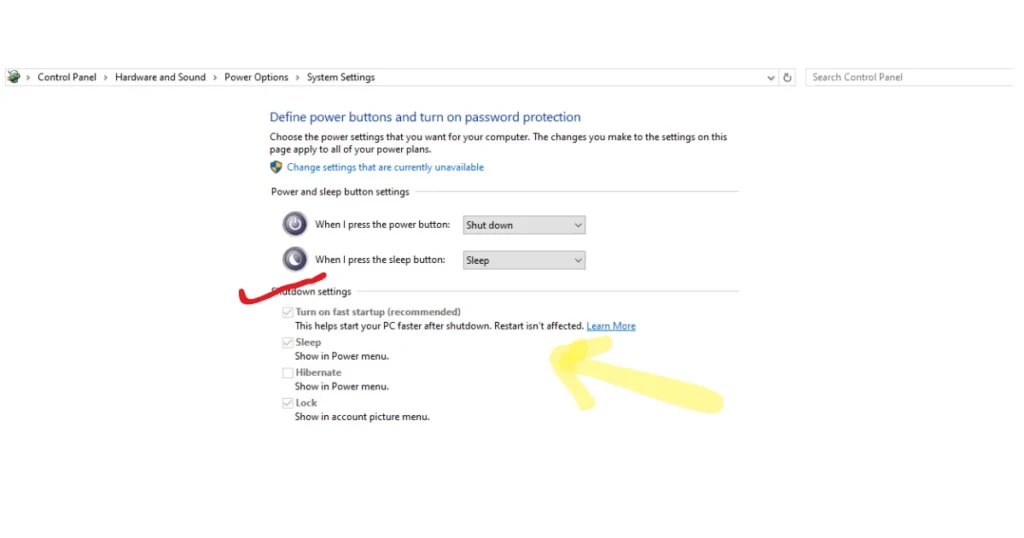
To disable Fast Startup Windows 10, open Control Panel Windows 11 and navigate to the Windows 11 power settings. Click on Choose what the power buttons do, then change settings that are currently unavailable. Finally, uncheck Turn on Fast Startup and restart computer after disabling Fast Startup.
For users who prefer the Registry Editor Fast Startup, you can modify the HiberbootEnabled value in the registry, setting it from 1 to 0. This method ensures a full shutdown every time. Here’s a simple table for comparison:
| Method | Steps | Notes |
| Control Panel Windows 11 | Power Options → Choose what the power buttons do → Uncheck Turn on Fast Startup | Easy and safe |
| Registry Editor Fast Startup | HKEY_LOCAL_MACHINE\SYSTEM\CurrentControlSet\Control\Session Manager\Power → HiberbootEnabled=0 | Advanced users only |
6. How to Disable Fast Startup in Windows 11
In Windows 11, open the Windows 11 Settings app and go to System → Power & Sleep → Additional power settings. Select Choose what the power buttons do, then click change settings that are currently unavailable. Uncheck Turn on Fast Startup and restart computer after disabling Fast Startup.
Advanced users can also modify registry to disable Fast Startup or adjust BIOS/UEFI settings directly. Disabling it ensures a Windows 11 complete shutdown, which is essential for troubleshooting Windows startup, updating drivers, or accessing boot menus. This method guarantees a fully refreshed system state on every startup.
7. Alternative Methods to Disable Fast Startup
Third-party utilities like PDQ allow users to disable Fast Startup with minimal manual steps. For tech-savvy users, the Registry Editor Fast Startup approach provides direct control over Windows 11 system state during shutdown. These alternatives are valuable when the default Windows 11 power off settings do not reflect changes properly.
BIOS or UEFI configurations can also manage Fast boot vs full shutdown preferences. Modifying BIOS/UEFI settings ensures the PC honors a true full shutdown rather than relying on hybrid shutdown methods. These approaches provide flexibility for power management and system maintenance beyond the Windows 11 Settings app.
8. Troubleshooting Fast Startup Issues
Some users may face Fast Startup problems even after attempting to turn off Fast Startup. Common issues include slow restarts, device recognition errors, or inability to access certain startup options. Checking Windows shutdown settings, updating drivers, and resetting Windows 11 Power Options often resolves these issues.
For advanced troubleshooting, using the Registry Editor Fast Startup to force a complete shutdown and adjusting BIOS/UEFI settings can solve stubborn boot problems. These steps help maintain PC startup performance, resolve hardware and software issues, and ensure the system runs reliably after disabling Fast Startup.
9. Fast Startup and Dual-Boot Systems
The Fast Startup feature can cause serious conflicts in dual-boot Windows 11 and Linux setups. When enabled, Windows may lock drives or leave partitions in an inconsistent state, preventing Linux from booting. Performing a Windows 11 complete shutdown by disabling Fast Startup avoids these conflicts and protects data integrity.
Users with dual-boot systems should also ensure Windows 11 Power Options and BIOS/UEFI settings allow full shutdown. Doing so eliminates problems caused by Fast boot vs full shutdown, ensuring both operating systems start cleanly without interference.
10. Conclusion
Turning off Fast Startup in Windows 11 ensures a full shutdown and solves many Fast Startup problems. It provides better control over Windows 11 system state, prevents conflicts with dual-boot setups, and supports advanced troubleshooting Windows when required.
While Fast Startup can improve boot times, disabling it ensures a more reliable and predictable startup experience. By following these steps, using Windows 11 power settings, Registry Editor Fast Startup, or BIOS adjustments, users can speed up Windows startup in a safe, controlled way. Always restart computer after disabling Fast Startup to apply changes and maintain PC startup performance.
Read More At: ZAVIFY LTD