How to Make Your WordPress Site Lightning Fast
In the current digital landscape, speed is not merely a technical luxury; it is a fundamental business metric. For users, a slow site destroys trust. For search engines like Google, it is a negative ranking signal.
While WordPress powers over 40% of the web due to its flexibility, that same flexibility often leads to performance bloat. Without a strategic approach to optimization, a standard installation can quickly become sluggish, affecting conversion rates and SEO visibility.
This guide provides a holistic framework for transforming a sluggish CMS deployment into a lightning fast digital asset. We will move beyond basic plugin advice to understand the architecture of speed.
What Is WordPress Speed Optimization?
At its core, WordPress speed optimization is the process of reducing the time it takes for your server to send data to a user’s browser and for that browser to render the page.
It is not simply about installing a plugin. It is a multi-layered discipline involving server-side configuration, database management, and front-end asset delivery.
The Metrics That Matter
To make a site fast, you must define “fast.” Modern SEO relies on Core Web Vitals, a set of specific metrics used by Google:
- Largest Contentful Paint (LCP): How long it takes for the main content to load.
- Interaction to Next Paint (INP): How quickly the page responds to user clicks.
- Cumulative Layout Shift (CLS): Visual stability (does the layout jump around?).
True optimization targets these specific metrics rather than a generic “load time.”
Related Concepts & Comparisons
To achieve a lightning fast experience, it is crucial to distinguish between related performance concepts and common misconceptions.
Performance vs. Perceived Performance
Performance is the raw data: how many milliseconds it takes to load a script. Perceived performance is how fast the site feels to the user. Techniques like “lazy loading” (loading images only when they scroll into view) improve perceived performance even if the total page size remains the same.
Managed Hosting vs. Shared Hosting
This is the most critical infrastructure decision.
- Shared Hosting: Your site competes for resources (CPU/RAM) with hundreds of others. It is cheap but inherently slow under load.
- Managed WordPress Hosting: The server stack is specifically tuned for WordPress (Nginx, object caching, latest PHP versions). This is often the single biggest factor in speed.
Caching vs. Optimization
Caching saves a static copy of your page to serve it faster next time. Optimization involves reducing the file size of the code and images themselves. You need both.
How WordPress Performance Works
Understanding the “lifecycle” of a page load helps identify bottlenecks. Here is the technical flow, simplified:
1. Time to First Byte (TTFB)
When a user visits your URL, the browser sends a request to your server. The time it takes for the server to “think” and send back the first byte of data is TTFB.
- Bottlenecks: Slow hosting, outdated PHP versions, lack of page caching.
2. Database Querying
WordPress is dynamic. It builds pages on the fly by asking the database for content.
- Bottlenecks: Bloated database tables (thousands of post revisions), inefficient plugin queries.
3. Asset Loading & Rendering
Once the browser receives the HTML, it must download images, CSS (styling), and JavaScript (functionality) to paint the screen.
- Bottlenecks: Uncompressed images, heavy page builders, too many external scripts (tracking codes, chat widgets).
Benefits and Trade-offs
Optimizing for speed involves strategic decisions. It is rarely a “free” upgrade; it requires time, investment, or functional sacrifices.
The Benefits
- Improved SEO Rankings: Google explicitly favors sites with healthy Core Web Vitals.
- Higher Conversion Rates: Walmart found that for every 1 second improvement in page load time, conversions increased by 2%.
- Lower Bounce Rates: Users leave sites that take longer than 3 seconds to load.
The Trade-offs
- Functionality Limits: You may need to remove heavy elements like auto-playing carousels, background videos, or excessive third-party widgets.
- Complexity: Implementing advanced caching (like Redis or Varnish) requires technical expertise or premium hosting.
- Maintenance: Aggressive optimization (like minifying JavaScript) can sometimes break site functionality, requiring ongoing testing.
Key Optimization Vectors (Use Cases)
To make your WordPress site lightning fast, focus on these four critical vectors.
1. Infrastructure Level (The Foundation)
You cannot code your way out of bad hosting.
- Best for: High-traffic sites, eCommerce (WooCommerce).
- Action: Move to a host that utilizes Google Cloud Platform (GCP) or AWS infrastructure. Ensure they offer PHP 8.0+ and server-level caching.
2. Asset Level (Images and Media)
Images often account for 50% or more of a page’s total weight.
- Best for: Portfolios, blogs, media-rich sites.
- Action: Serve images in WebP format (next-gen compression). Use a CDN (Content Delivery Network) to serve files from servers closest to the user’s physical location.
3. Code Level (Minification and Script Management)
This involves cleaning up the HTML, CSS, and JS delivery.
- Best for: Sites using heavy themes or page builders.
- Action: Minify code (remove whitespace). Delay JavaScript execution so the visual part of the site loads before the functional scripts.
4. Database Level (Hygiene)
A cluttered database slows down the backend processing.
- Best for: Older sites with years of content.
- Action: Limit post revisions, delete spam comments, and clean up “transients” (temporary data options) regularly.
How to Evaluate Your Performance Strategy
Before making changes, establish a baseline. Do not guess; use data.
Measurement Tools
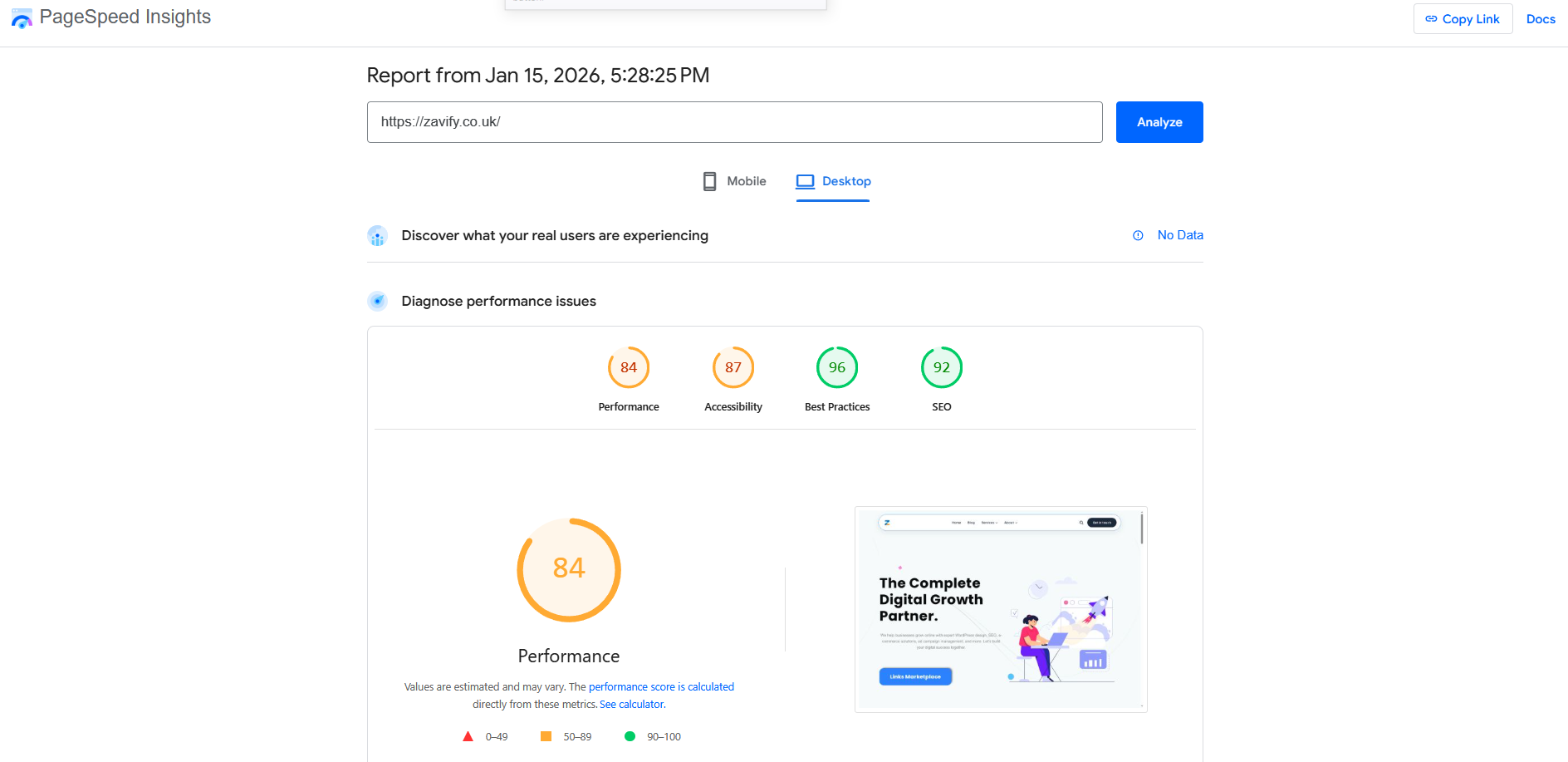
- Google PageSpeed Insights: The gold standard for Core Web Vitals. Focus on “Mobile” scores, as Google uses mobile-first indexing.
- GTmetrix: Great for seeing a “Waterfall” chart—a visual representation of exactly which file is blocking the page load.
- Query Monitor (Plugin): A development tool that shows which plugins are making slow database queries.
Decision Framework: Plugin vs. Custom
When adding functionality, ask: “Is the performance cost worth the feature?”
| Criteria | Use a Plugin | Hire a Developer / Custom Code |
| Complexity | Simple UI changes, caching, SEO meta. | Complex logic, database interactions. |
| Performance Risk | Moderate (if the plugin is reputable). | Low (if coded correctly). |
| Maintenance | Updates are handled by the vendor. | You own the code upkeep. |
Also Check: WordPress SEO: Best Practices for Website Owners
Quick Summary / TL;DR
Making WordPress lightning fast is not about a single magic switch. It is a holistic approach to digital hygiene and infrastructure.
- Start with Hosting: If your TTFB is high, change hosts before doing anything else.
- Optimize Images: This is the lowest-hanging fruit. Automate WebP conversion.
- Cache Aggressively: Use page caching and object caching to reduce server load.
- Monitor Core Web Vitals: Focus on LCP and CLS for the biggest SEO impact.
WordPress is capable of enterprise-grade speed, but only when you strip away the excess and prioritize the rendering path. Treat performance as a feature, not an afterthought.
Note: If you want to build a WordPress Site see our page: WordPress Web Design