
How to Enable or Disable Fast Startup in Windows 11
Modern computers start quickly. Yet the Windows 11 fast startup feature plays a major role in reducing boot delays. Many users search for ways to enable fast startup Windows 11 or disable fast startup Windows 11 when troubleshooting slow startups or system errors. Understanding how this feature works helps improve Windows 11 boot speed, system stability, and everyday productivity.
In simple terms, Fast Startup blends shutdown and sleep behavior. It saves part of the system state before powering off. When the computer starts again, Windows loads that saved information instead of starting from scratch. This clever process improves Windows 11 startup performance and helps the operating system reach the sign-in screen faster.
What is Fast Startup in Windows 11?
Fast Startup is a built-in power capability designed to improve Windows 11 boot speed. Instead of performing a full shutdown, the system stores essential components in hibernation in Windows 11. The stored data includes the Windows 11 kernel session and several Windows 11 loaded drivers, which allows Windows to resume the Windows 11 system boot state much faster than a traditional reboot.
The feature exists inside Windows 11 power options and is enabled by default on many devices. Microsoft introduced this technology to enhance Windows 11 system performance on both laptops and desktops. When properly configured within Windows 11 startup settings, the Windows 11 fast boot feature improves overall Windows 11 boot optimization and reduces waiting time during startup.
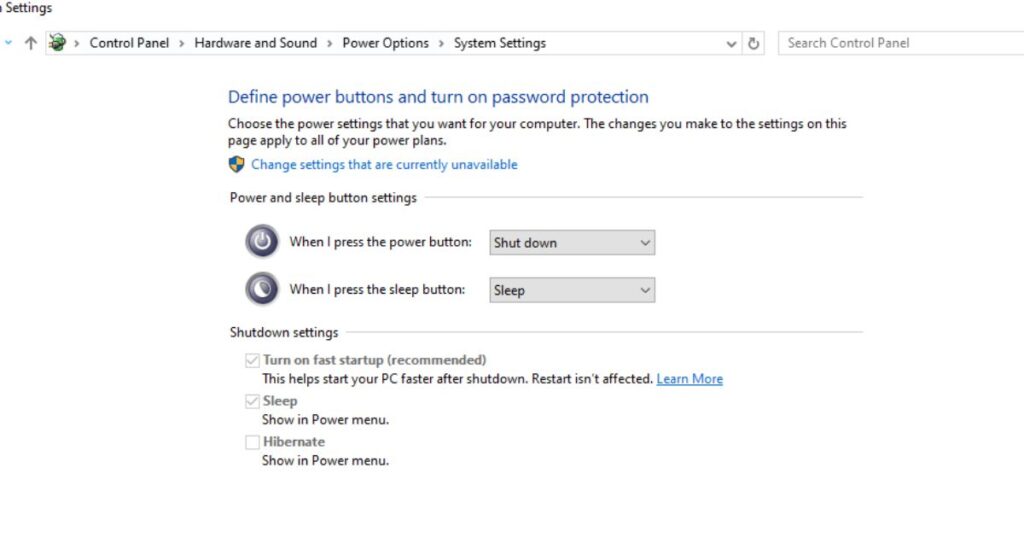
How Fast Startup Works in Windows 11
The Windows 11 system boot process normally initializes every driver and service during startup. However, Fast Startup stores part of the operating system in a special hibernation file. That file contains the kernel and system drivers which belong to the Windows 11 kernel session and the previously loaded operating environment.
During the next boot cycle, Windows reloads that saved information instead of starting everything again. This process restores the Windows 11 system boot state almost instantly. Because fewer components restart, the computer reaches the login screen faster and improves Windows 11 startup performance while maintaining efficient Windows 11 power management settings.
| Boot Mode | Startup Speed | System State Saved |
| Normal Boot | Slower | None |
| Hibernate | Medium | Full session |
| Fast Startup | Fast | Kernel and drivers |
Benefits of Fast Startup on Windows 11
One of the biggest advantages of enable fast startup Windows 11 is faster boot time. When the Windows 11 fast startup feature is active, the system restores stored kernel data rather than loading every component again. This significantly improves Windows 11 boot speed, especially on older machines that rely on traditional hard drives.
Another benefit appears in daily workflow. Faster startup means quicker access to applications and files. Combined with proper Windows 11 startup settings and efficient Windows 11 power management settings, this technology improves Windows 11 system performance and delivers smoother computing for everyday tasks.
Why You Might Need to Disable Fast Startup
Although useful, some situations require users to disable fast startup Windows 11. Systems running multiple operating systems sometimes experience Windows 11 dual boot issues because the stored Windows 11 system boot state prevents other systems from modifying disk files properly.
Certain technical scenarios also require a full shutdown. For example, Windows 11 firmware updates, driver installation, and hardware changes may not apply correctly while Fast Startup is active. In such cases, turn off fast startup Windows 11 helps resolve Windows 11 driver compatibility problems and provides a reliable Windows 11 boot problems fix.
How to Enable Fast Startup Using Control Panel
The easiest way to turn on fast startup Windows 11 involves using Windows 11 Control Panel power settings. First open Control Panel and access Windows 11 power options. Inside the power settings menu, select the option that controls power button behavior and system shutdown preferences.
After unlocking the settings, activate the option labeled Fast Startup. Saving the changes immediately activates the Windows 11 startup feature and improves Windows 11 startup performance. Once enabled, the computer will use the stored Windows 11 kernel session during future startups to accelerate the Windows 11 system boot process.
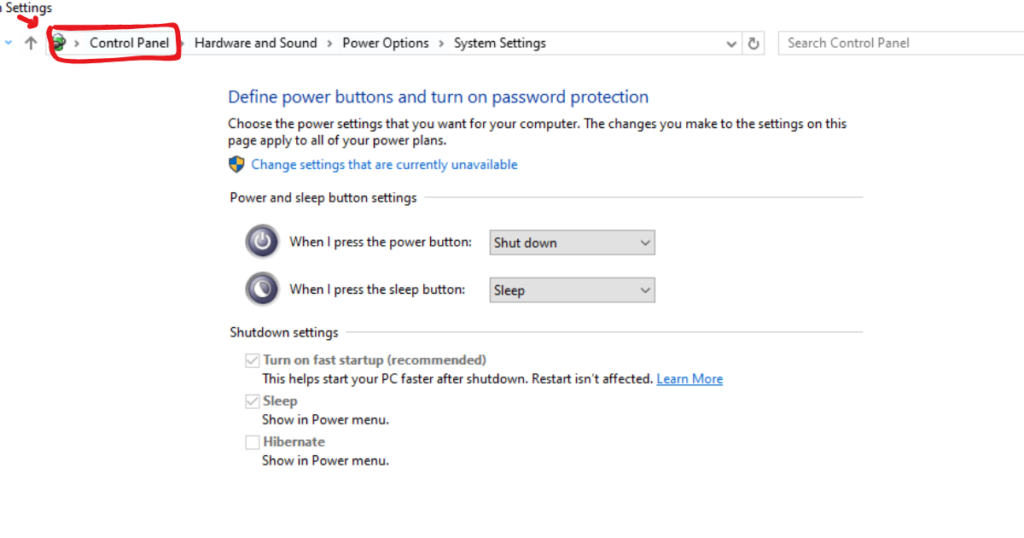
How to Disable Fast Startup Using Control Panel
Some users choose to disable fast startup Windows 11 through Windows 11 shutdown settings when troubleshooting system errors. The process begins by opening Windows 11 Control Panel power settings and locating the advanced power menu where shutdown behavior can be adjusted.
After accessing the settings, remove the check mark from the Fast Startup option. This action forces Windows to perform a complete shutdown each time. While startup may take slightly longer, the system gains improved stability and allows accurate Windows 11 boot troubleshooting in situations involving updates or hardware conflicts.
Disable Fast Startup Using Command Prompt
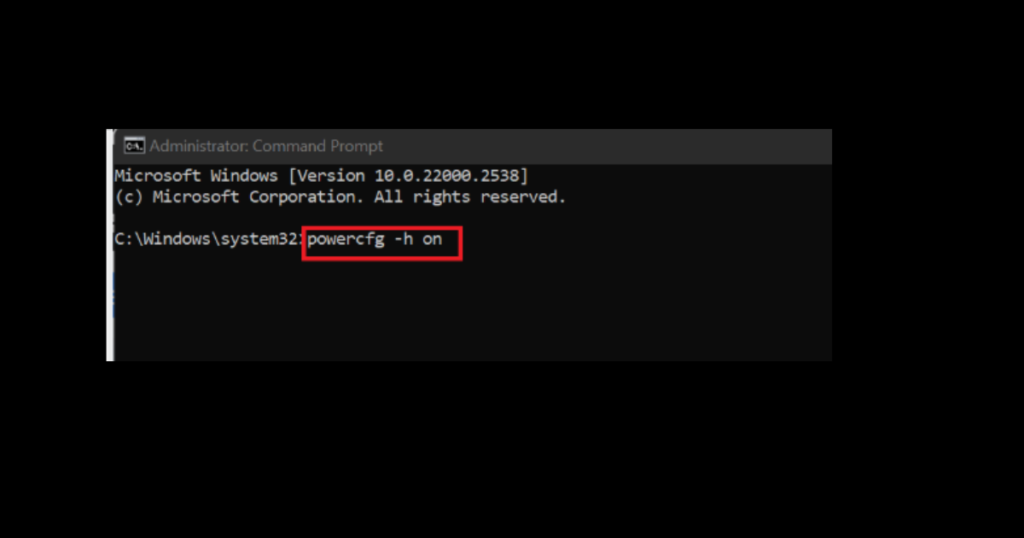
Advanced users often prefer the command line to turn off fast startup Windows 11 quickly. The process involves opening an administrator terminal and using the Windows 11 Command Prompt powercfg command to modify power settings directly within the operating system.
The command disables hibernation in Windows 11, which automatically turns off the Windows 11 fast startup feature. Once executed, Windows performs a full shutdown cycle during every restart. This method also helps reduce unnecessary Windows 11 storage usage because the system removes the large hibernation file from the disk.
| Command | Function |
| powercfg /hibernate off | Disables Fast Startup |
| powercfg /hibernate on | Enables Fast Startup |
Disable Fast Startup Using Group Policy Editor
Business environments sometimes control power settings through administrative policies. System administrators may disable fast startup Windows 11 using policy settings to maintain consistent device behavior across networks.
Inside the policy editor, administrators configure system shutdown rules that override normal Windows 11 startup settings. This ensures devices follow specific power configurations. Organizations often apply this method to prevent Windows 11 driver compatibility problems and maintain consistent Windows 11 system performance across enterprise machines.
Disable Fast Startup Using Windows Registry
Another advanced method to disable fast startup Windows 11 involves modifying the Windows registry. The registry stores configuration data that controls the Windows 11 startup feature and other operating system functions.
Changing the Fast Startup registry value updates Windows 11 shutdown settings and modifies the system’s boot behavior. Once updated, Windows performs a complete boot instead of restoring the Windows 11 kernel session. This adjustment can improve reliability when diagnosing complex Windows 11 boot troubleshooting scenarios.
Fast Startup Option Missing in Windows 11 (How to Fix It)
Sometimes users cannot see the Fast Startup option inside Windows 11 power options. This issue usually occurs when hibernation in Windows 11 is disabled or when the hardware lacks support for the Windows 11 ACPI S4 power state.
Re-enabling hibernation restores the setting and allows users to enable fast startup Windows 11 again. However, if the device hardware does not support the required power state, the option may remain unavailable. In such cases, adjusting Windows 11 power management settings or updating system firmware can help restore the feature.
Conclusion
Fast Startup remains one of the most useful Windows 11 startup settings for improving Windows 11 boot speed. By storing the Windows 11 kernel session and restoring the previous Windows 11 system boot state, the operating system starts faster and improves everyday Windows 11 system performance.
However, situations involving Windows 11 dual boot issues, driver conflicts, or Windows 11 firmware updates may require users to disable fast startup Windows 11 temporarily. Understanding how to enable fast startup Windows 11 or adjust Windows 11 power management settings ensures the system remains both fast and reliable.
Frequently Asked Questions About Fast Startup
How do I turn off fast startup in Windows 11?
Open Control Panel → Power Options → Shutdown settings and uncheck Turn on fast startup, then save changes.
What is “fast boot” on a computer?
Fast Boot is a feature that speeds up startup by loading essential system files and drivers before full initialization.
How do I turn off Fast Launch?
Fast Launch can be disabled via Windows 11 power settings or by using the Command Prompt powercfg command to turn off hibernation.
How do I deactivate Fast Start?
Deactivate it by unchecking Fast Startup in Windows 11 shutdown settings or using advanced methods like Group Policy Editor or Registry.
Is it safe to disable fast boot in BIOS?
Yes, it is safe; disabling it allows full hardware initialization but may slightly increase boot time.