

How to Change All Products to Physical Product in Shopify?
If you run an online store on Shopify, you may sometimes need to convert products from digital or service-based items to physical products. This often happens when store owners initially set up products incorrectly or decide to start selling items that require shipping.
Understanding how to change all products to physical products in Shopify is important because physical items require shipping details, inventory tracking, and fulfillment settings.
In this guide, you’ll learn what physical products are in Shopify, why you might need to change them, and how to update all products efficiently.
What Is a Physical Product in Shopify?
A physical product in Shopify is any item that needs to be shipped to a customer. Unlike digital products, physical items require shipping information and fulfillment processes.
Examples of physical products include:
- clothing and accessories
- electronics
- books
- handmade products
- beauty products
When a product is marked as physical in Shopify, the system allows you to configure:
- shipping rates
- delivery methods
- inventory tracking
- fulfillment services
Why You Might Need to Change Products to Physical
There are several reasons why Shopify store owners change their products to physical items.
Incorrect Product Setup
Sometimes products are added without enabling shipping settings, which makes Shopify treat them like digital or non-shippable products.
Expanding Your Store
You may have started with digital products but later added physical merchandise.
Shipping Integration
To integrate with shipping apps, logistics services, or fulfillment providers, products must be marked as physical.
Method 1: Change Products Individually
If you only have a few products, the easiest way is to edit them one by one.
Steps
- Log in to your Shopify Admin Dashboard
- Click Products in the left menu
- Select the product you want to edit
- Scroll to the Shipping section
- Check the box “This is a physical product”
- Save the changes
Repeat these steps for each product that needs to be updated.
Method 2: Bulk Edit Products in Shopify
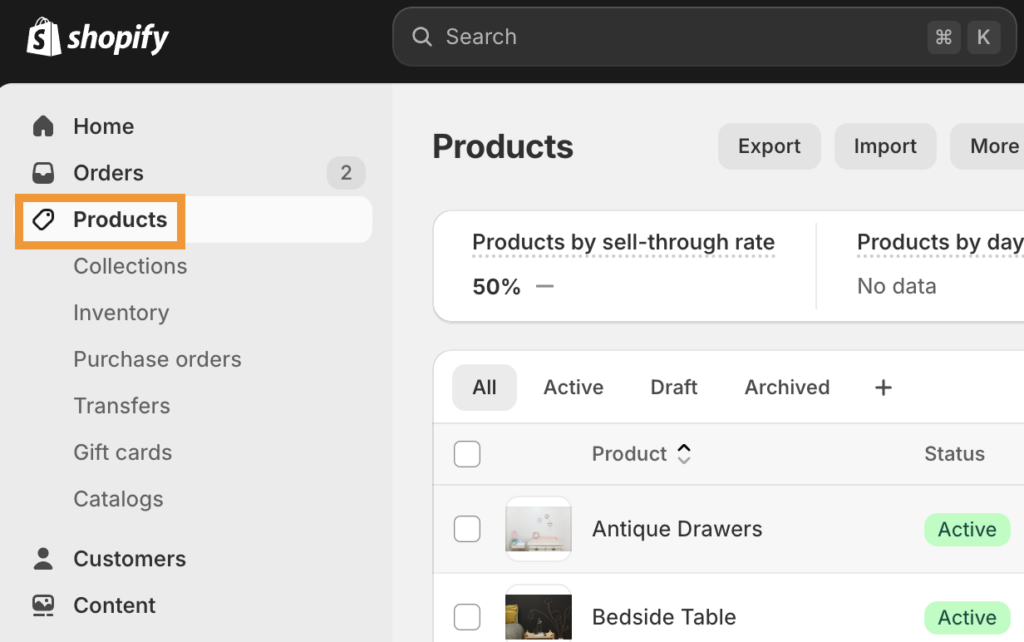
If your store has many products, Shopify’s bulk editor is a faster solution.
Steps to Use Bulk Editor
- Go to Shopify Admin
- Click Products
- Select multiple products using the checkboxes
- Click Bulk Edit
- Add the “Requires Shipping” column
- Set it to True for all selected products
- Save your changes
This method allows you to update many products at once without editing them individually.
Method 3: Use CSV Import for Large Stores
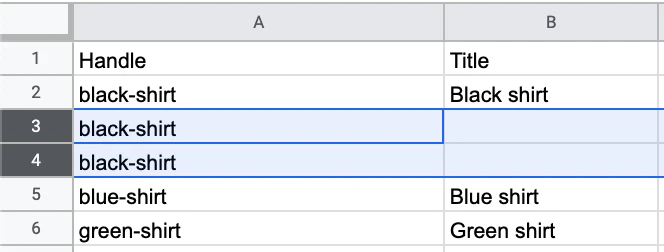
If you have hundreds or thousands of products, using a CSV file is the most efficient method.
Steps
- Go to Products in Shopify
- Click Export Products
- Open the CSV file in Excel or Google Sheets
- Find the column “Requires Shipping”
- Change the value to TRUE for all products
- Save the file
- Import the updated CSV back into Shopify
This approach is ideal for large stores that need mass updates quickly.
Important Settings for Physical Products
After converting products to physical items, make sure these settings are configured properly.
Shipping Rates
Set up shipping zones and rates in Settings → Shipping and Delivery.
Inventory Tracking
Enable inventory tracking so you can monitor stock levels and prevent overselling.
Fulfillment Method
Choose how orders will be fulfilled:
- manual fulfillment
- third-party logistics (3PL)
- dropshipping services
Common Issues When Changing Products
Some store owners encounter issues when converting products to physical items.
Shipping Options Not Showing
This usually happens if shipping zones are not configured in Shopify settings.
Inventory Errors
Ensure inventory tracking is enabled if you want Shopify to manage stock levels.
Incorrect Product Variants
Each variant must also have the Requires Shipping option enabled.
Tips for Managing Physical Products in Shopify
Managing physical products becomes easier when your store is properly organized.
Some helpful tips include:
- keep product inventory updated
- use SKU numbers for product tracking
- optimize shipping rates to reduce cart abandonment
- organize products into clear collections
These practices improve both store management and customer experience.
Final Thoughts
Changing products to physical items in Shopify is a simple but important process for stores that ship goods to customers. Whether you update products individually, use the bulk editor, or modify a CSV file, Shopify provides flexible tools to handle product changes efficiently.
By ensuring your products are properly configured as physical items, you can manage shipping, inventory, and order fulfillment smoothly—helping your online store operate more effectively and provide a better shopping experience for customers.







One Comment