How to Add Keywords to a Shopify Website?
If you want your store to appear on Google and attract free organic traffic, you must learn how to add keywords to your Shopify website properly. Keywords help search engines understand what your store is about and match your pages with customer searches.
Simply adding random words is not enough — you need the right keyword placement and strategy to improve rankings. In this complete SEO guide, you’ll learn exactly where and how to add keywords in Shopify for better visibility and sales.
Why Keywords Are Important for Shopify SEO
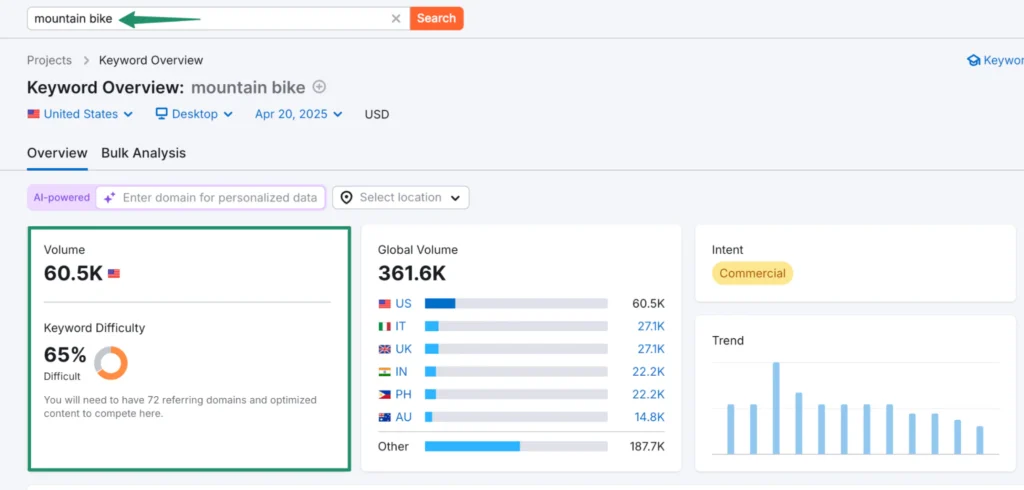
Keywords are the search terms people type into Google when looking for products.
For example:
- “buy leather wallet online”
- “best gym shoes for men”
- “affordable skincare products”
When your Shopify store includes these relevant keywords, Google can rank your pages higher in search results.
Benefits of adding keywords correctly:
- Higher Google rankings
- More organic traffic
- Better product visibility
- Increased sales
- Lower advertising costs
Step 1: Do Keyword Research First
Before adding keywords, you need to find the right ones.

Look for Keywords That:
- Match your product niche
- Have buying intent
- Are not too competitive
- Include long-tail variations
Example:
Instead of:
shoes
Use:
lightweight running shoes for men
Long-tail keywords are easier to rank and bring more targeted buyers.
You can find keywords using:
- Google autocomplete
- Google “People also ask”
- Keyword research tools
- Competitor analysis
Step 2: Add Keywords to Shopify Page Titles
Your page title is one of the most important SEO elements.
How to Add Keywords to Page Titles:
- Go to Shopify Admin
- Click Products (or Pages/Collections)
- Open the product or page
- Scroll to Search engine listing preview
- Click Edit website SEO
- Add your main keyword in the Title field
Best Practice:
- Keep title under 60 characters
- Put main keyword at the beginning
- Make it natural and readable
Example:
Lightweight Running Shoes for Men | BrandName
Step 3: Add Keywords to Meta Descriptions
Meta descriptions improve click-through rate from Google.
Steps:
- Inside “Edit website SEO”
- Add a short description (under 160 characters)
- Include your main keyword naturally
Example:
Shop lightweight running shoes for men with fast delivery and premium comfort.
Step 4: Add Keywords to Product Descriptions
This is where many Shopify store owners make mistakes.
Avoid copying supplier descriptions.
Instead:
- Write unique content
- Include primary and secondary keywords
- Explain benefits
- Use bullet points
- Add FAQs
Example:
Instead of:
Comfortable running shoes.
Use:
These lightweight running shoes for men provide breathable comfort and durable grip for daily workouts.
Google prefers helpful and original content.
Step 5: Add Keywords to Collection Pages
Collection pages are powerful for SEO.
Example:
- “Men’s Running Shoes”
- “Organic Skincare Products”
Optimize:
- Collection title
- Collection description
- SEO title and meta description
Add at least 200–300 words describing the collection.
Step 6: Add Keywords to Image ALT Text
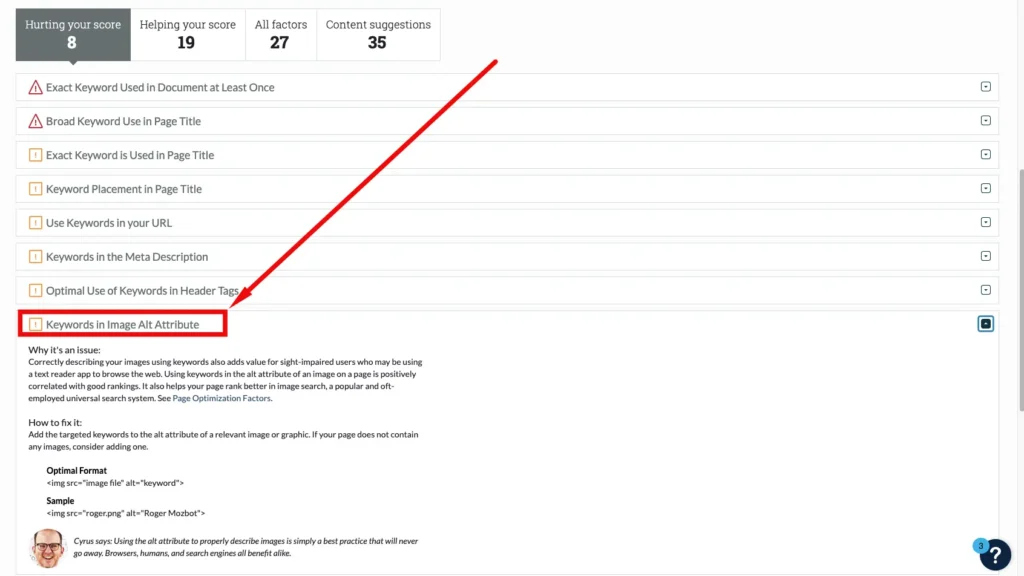
Google also reads images.
To Add ALT Text:
- Go to product
- Click product image
- Add description in ALT text field
Example:
black leather wallet for men slim design
This helps rank in Google Image search.
Step 7: Add Keywords to URLs
Clean URLs improve SEO.
Example:
Bad:
yourstore.com/products/item123
Good:
yourstore.com/products/leather-wallet-for-men
Shopify automatically generates URLs, but you can edit them in SEO settings.
Step 8: Use Keywords in Blog Content
Blogging helps Shopify stores rank faster.
Write posts like:
- “How to Choose the Best Running Shoes”
- “Top 10 Skincare Products for Oily Skin”
Use keywords naturally in:
- Headings
- Paragraphs
- Subheadings
- Internal links
Content marketing builds authority.
Step 9: Avoid Keyword Stuffing
Do NOT:
- Repeat the same keyword unnaturally
- Add keywords in every sentence
- Use irrelevant keywords
Google penalizes over-optimization.
Keep content natural and helpful.
Step 10: Track Keyword Performance
After adding keywords:
- Use Google Search Console
- Monitor impressions and clicks
- Check ranking improvements
- Update pages regularly
SEO is an ongoing process.
Where You Should Add Keywords in Shopify (Quick Summary)
Add keywords in:
- Page Titles
- Meta Descriptions
- Product Descriptions
- Collection Pages
- Blog Posts
- Image ALT Text
- URLs
- Headings (H1, H2, H3)
Each placement strengthens your SEO.
How Long Does It Take to Rank?
Keyword optimization takes time.
Typical timeline:
- 1–2 months: Indexing
- 3–6 months: Ranking improvements
- 6+ months: Strong traffic growth
Consistency is key.
Final Thoughts
Learning how to add keywords to your Shopify website is essential for ranking on Google and driving free traffic. By placing keywords strategically in titles, descriptions, URLs, images, and content, you improve your chances of reaching the first page.
Remember, SEO success comes from quality content, proper keyword usage, and continuous optimization. Start applying these steps today, and your Shopify store will move closer to higher rankings and increased sales.