How to Delete a Shopify Store?
If you no longer need your online store, learning how to delete a Shopify store properly is important to avoid future charges and protect your business data. Whether you are closing a business, testing Shopify temporarily, or moving to another platform, Shopify allows you to deactivate your store safely.
In this complete SEO-optimized guide, you’ll learn how to delete or deactivate a Shopify store, what happens after deletion, and important things to do before closing your account.
What Does Deleting a Shopify Store Mean?
Technically, Shopify calls it “deactivating” your store instead of permanently deleting it immediately. When you deactivate your store:
- Your website becomes inaccessible to customers
- Subscriptions and billing stop
- Admin access is removed
- Store data is stored temporarily by Shopify
This means your store is closed, but recovery may still be possible for a limited time.
Things to Do Before Deleting Your Shopify Store
Before closing your store, take a few important steps to prevent data loss or billing issues.
✅ Backup Your Store Data
Download important information such as:
- Products list
- Customer data
- Orders and invoices
- Analytics reports
You can export this data as CSV files from Shopify admin.
✅ Cancel Apps and Subscriptions
Third-party apps may continue billing even after store closure.
- Remove installed apps
- Cancel paid integrations
- Check external services
✅ Fulfill Pending Orders
Make sure:
- All orders are completed
- Refunds are processed
- Customers are informed
This helps avoid disputes later.
✅ Pay Outstanding Bills
Shopify requires all unpaid charges to be cleared before deactivation.
How to Delete (Deactivate) a Shopify Store
Follow these steps carefully:
Step 1: Log in to Shopify Admin
Go to your Shopify dashboard using the store owner account.
Step 2: Open Settings
Click Settings at the bottom left corner.
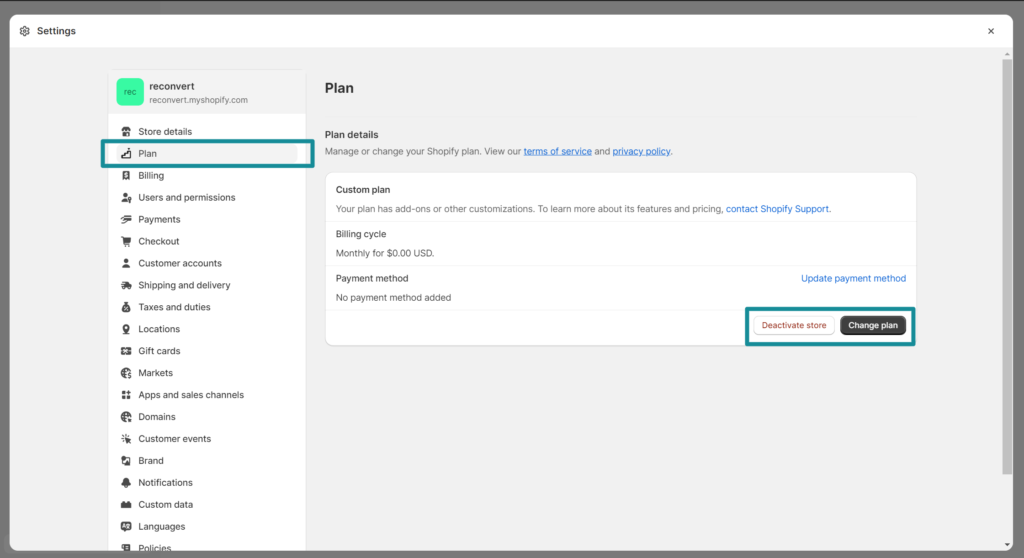
Step 3: Select Plan
Inside settings, choose Plan.
Step 4: Click “Deactivate Store”
Scroll down and select Deactivate Store.
Step 5: Choose a Reason
Shopify will ask why you are closing your store. Select any reason that applies.
Step 6: Enter Password
Confirm your identity by entering your password.
Step 7: Confirm Deactivation
Click Deactivate Now.
Your Shopify store will be closed immediately.
What Happens After You Delete Your Shopify Store?
After deactivation:
- Your online store goes offline
- Customers cannot access your website
- Billing stops after final charges
- Admin panel becomes unavailable
- Shopify stores your data temporarily
If you change your mind, Shopify support may allow reactivation within a certain period.
Can You Reopen a Deleted Shopify Store?
Yes, in many cases you can reopen your store.
You may need to:
- Contact Shopify Support
- Log in again with store credentials
- Choose a new subscription plan
However, long-inactive stores may be permanently removed.
Common Problems When Deleting a Shopify Store
Cannot Find Deactivate Option
Only the store owner can deactivate the store.
Outstanding Charges Error
Pay pending invoices before closing.
App Charges Continue
Cancel third-party subscriptions separately.
Alternative Option: Pause Instead of Deleting
If you are unsure about closing permanently, Shopify offers a Pause and Build plan.
This option allows you to:
- Keep store data
- Work on store privately
- Pay reduced monthly fees
This is useful if you plan to relaunch later.
SEO & Business Reasons People Delete Shopify Stores
Store owners commonly deactivate stores because:
- Testing period ended
- Switching platforms
- Low sales performance
- Business restructuring
- Brand change or new niche
Closing unused stores helps avoid unnecessary costs.
Tips Before Starting a New Store Again
If you plan to return to ecommerce later:
- Analyze previous store performance
- Study customer behavior
- Improve product research
- Optimize marketing strategy
- Prepare better branding
Learning from your previous store increases future success.
Final Thoughts
Deleting a Shopify store is a straightforward process, but it’s important to do it correctly. By backing up your data, canceling subscriptions, and clearing payments first, you can close your store smoothly without complications.
Whether you are ending a business or preparing for a fresh start, properly deactivating your Shopify store ensures you avoid extra charges and maintain control over your online business journey.