
How Do I Send an Encrypted Email in Outlook?
Sending an encrypted email in Outlook helps protect your message so that only the intended recipient can read it. Encryption keeps sensitive information such as passwords, business data, or personal details safe from unauthorized access.
Outlook provides built-in encryption features that make it easy to send secure emails without needing advanced technical skills.
Why Use Encrypted Email in Outlook?
Email encryption is important when you send private or confidential information. It protects your data from hackers and prevents unauthorized users from reading your messages.
People usually use encrypted emails for:
- Business communication
- Financial information
- Passwords and login details
- Legal documents
- Personal data
Encryption adds an extra layer of security to your emails.
Method 1: Send an Encrypted Email Using Outlook (Desktop)
Follow these simple steps:
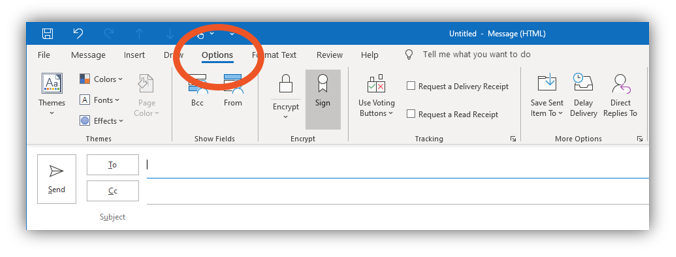
- Open Outlook
- Click New Email
- Go to the Options tab
- Click Encrypt
- Choose an encryption option such as:
- Encrypt Only
- Do Not Forward
- Write your email message
- Click Send
Your email will now be encrypted and protected.
Method 2: Send an Encrypted Email in Outlook Web
If you use Outlook in a browser, follow these steps:
- Open Outlook Web
- Click New Message
- Click the Encrypt button (lock icon)
- Select the encryption option
- Write your email
- Click Send
The message will be securely encrypted before sending.
Types of Outlook Encryption
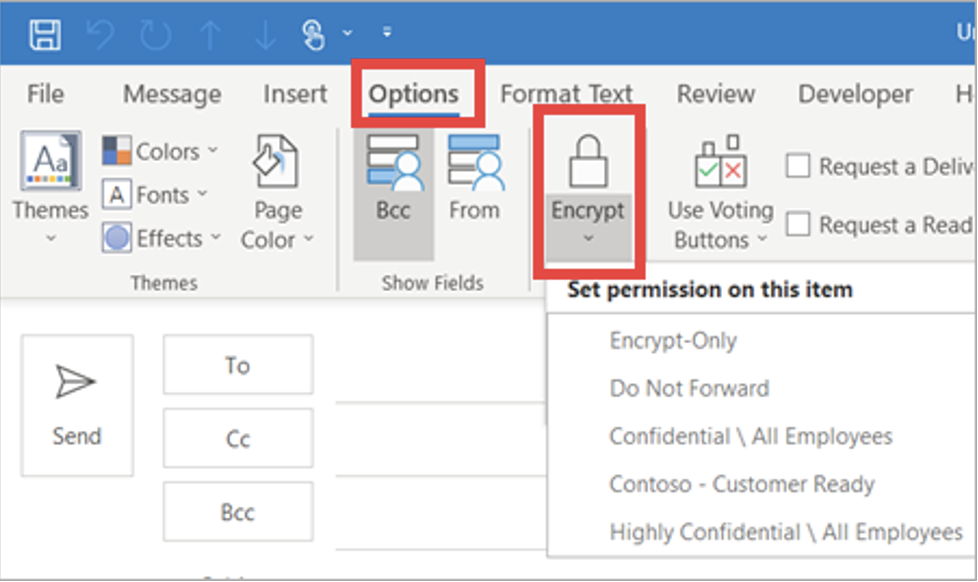
Outlook offers different encryption options depending on your account.
Encrypt Only
- Protects the content of the email
- Only the receiver can read it
Do Not Forward
- Prevents recipients from forwarding the email
- Blocks copying and printing
These features are useful for sensitive information.
Requirements for Email Encryption
Before sending encrypted emails, make sure:
- Your Outlook account supports encryption
- You have Microsoft 365 or a business account
- The recipient has access to email authentication
Some free accounts may have limited encryption features.
Tips for Secure Emailing
Follow these tips to improve email security:
- Double-check the recipient address
- Avoid sharing passwords in emails
- Use strong account passwords
- Enable two-factor authentication
- Encrypt sensitive messages
Final Thoughts
Sending encrypted emails in Outlook is a simple and effective way to protect your information. Whether you are sharing business data or personal details, encryption ensures that only the intended recipient can read your message. Learning how to use Outlook encryption can greatly improve your email security.






Great post! I never realized how simple it is to enable encryption in Outlook. I also like how you explained the different encryption types—it’s crucial to know which one to choose based on what you’re sending.
Thanks for breaking down the encryption process in Outlook—it’s great to see how straightforward it can be, especially with the built-in features. I particularly appreciate the reminder about not forwarding encrypted emails, as that’s something I often overlook. It’s a small detail but makes a big difference in maintaining security.
Thanks for walking through the encryption options in Outlook—especially helpful to know the difference between ‘Encrypt Only’ and ‘Do Not Forward’ settings. I’ve found that combining encryption with clear internal policies really helps ensure sensitive emails are handled properly. It’s great that Outlook makes this accessible without needing extra tools.
Thanks for breaking down the encryption process in Outlook—it’s reassuring to know that even basic users can protect sensitive data without needing advanced tools. I especially appreciate the clear steps for both desktop and web versions, which makes it easy to implement in real-world scenarios.